You tap the screen, swipe, press harder — nothing responds. A touch screen not working is one of the most frustrating tech issues people face daily, whether it happens on a smartphone, tablet, or laptop with a touchscreen display. Before heading to a repair shop or ordering a replacement, there are several practical steps worth trying that often solve the problem completely.
Why touchscreens stop responding in the first place
Most people assume a broken touchscreen means broken hardware. In reality, the majority of touch input failures come from software glitches, driver conflicts, or environmental factors like moisture and static electricity. Understanding what’s actually happening under the surface helps you target the real cause instead of guessing.
The touchscreen digitizer works by detecting changes in electrical charge when your finger makes contact. Any interference with this process — whether from a software crash, corrupted driver, physical damage, or even a screen protector — can disrupt the signal entirely.
Common causes worth knowing before you troubleshoot
- Software freeze or unresponsive operating system process
- Outdated or corrupted touchscreen drivers (especially on Windows devices)
- Physical damage to the digitizer layer beneath the glass
- Thick or damaged screen protector interfering with touch sensitivity
- Moisture inside the device or on the screen surface
- Low battery level causing reduced touch sensitivity on some devices
- Gloves, dry skin, or certain nail materials that don’t conduct electricity
Knowing what’s on this list already narrows your path forward. If your device got wet recently, that points in a very different direction than if it stopped working after a system update.
Step-by-step fixes that actually work
There’s no single universal fix, but working through these methods in order gives you the best chance of resolving the issue without professional help.
Restart the device first
It sounds obvious, but a full restart clears temporary memory, ends frozen background processes, and resets touch input services. On most phones and tablets, hold the power button and choose restart — not just screen-off. On Windows laptops, use the Start menu to do a proper shutdown and power back on rather than just closing the lid.
Clean the screen and check the protector
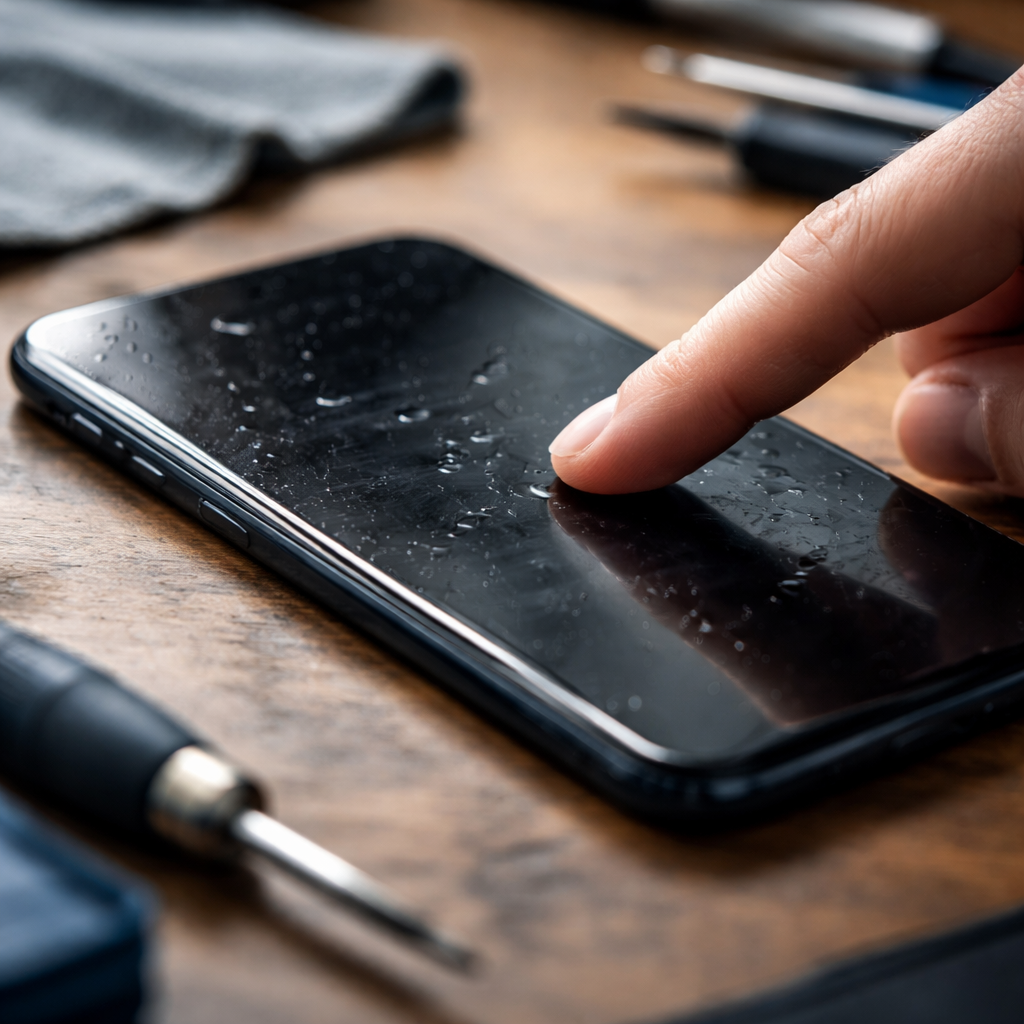
Wipe the display with a dry microfiber cloth. Even a thin film of oil or moisture across the surface can cause missed taps and unresponsive zones. If you’re using a screen protector, especially a thicker tempered glass one, try removing it temporarily and test without it. Some low-quality protectors significantly reduce touch accuracy.
Update or reinstall the touchscreen driver on Windows
On Windows devices, driver issues are a very common culprit. Here’s how to address it:
- Right-click the Start button and open Device Manager
- Expand the Human Interface Devices section
- Find HID-compliant touch screen and right-click it
- Choose Update driver, then Search automatically for drivers
- If that doesn’t help, choose Uninstall device, restart the computer — Windows will reinstall it automatically
Calibrate the touch input
On Windows, search for “Calibrate the screen for pen or touch input” in the Start menu and follow the on-screen steps. Android devices don’t have a built-in calibration tool in most cases, but some manufacturers include one in the settings under Display or Accessibility. Running calibration can fix offset touch registration, where your taps land slightly away from where you actually press.
Check for software updates
An operating system update often includes patches for known touch input bugs. On Android, go to Settings > System > Software Update. On iOS, go to Settings > General > Software Update. On Windows, check Settings > Windows Update. Installing the latest available version has resolved ghost touch and unresponsive screen issues for many users after manufacturers identify and fix the underlying bugs.
Ghost touches — where the screen registers input nobody made — and completely frozen touch response are two different problems. Ghost touches usually point to hardware damage or electrical interference. A completely frozen screen is more often a software issue.
Boot into safe mode to isolate app conflicts
On Android, press and hold the power button, then long-press the Power Off option to enter safe mode. This loads the system without third-party apps. If touch works normally in safe mode, a recently installed app is causing the conflict — uninstall apps added around the time the problem started.
| Device Type | Most Likely Cause | First Fix to Try |
|---|---|---|
| Android smartphone | App conflict or software crash | Restart, then safe mode test |
| iPhone / iPad | iOS bug or screen damage | Force restart, then update iOS |
| Windows laptop | Driver issue or calibration loss | Update/reinstall touchscreen driver |
| Tablet (any OS) | Screen protector interference | Remove protector and retest |
When the problem is physical damage
If none of the software-based fixes above make any difference, the issue is likely in the hardware — specifically the digitizer, which is the transparent layer that detects touch input. Cracks in the glass don’t always mean a broken digitizer, but internal pressure, drops, or manufacturing defects can damage it without any visible signs on the surface.
In this case, the realistic options are repair or replacement. Many phone repair shops can replace the digitizer separately from the display panel, which is usually less expensive than replacing the full screen assembly. Always ask for an itemized quote before agreeing to any repair.
A tip about moisture damage
If the device was exposed to water, power it off immediately and do not attempt to charge it. Place it in a dry environment for at least 24–48 hours before turning it back on. Powering on a wet device accelerates internal short circuits.
Preventive habits that protect your touchscreen long-term
Once you’ve resolved the issue, a few simple habits can significantly reduce the chances of it happening again. These aren’t complicated — just things most people overlook until something breaks.
- Use a quality screen protector rated for your specific model
- Keep the screen clean and dry, especially before and after outdoor use
- Avoid extreme temperatures — both heat and cold affect touch sensitivity
- Keep your operating system and device drivers up to date regularly
- Be cautious with third-party charging cables, as poor-quality chargers can cause electrical noise that triggers ghost touches
The last point about chargers surprises a lot of people, but it’s a well-documented issue. Plugging in a low-quality cable and noticing sudden erratic touch behavior is a strong sign that your charger is introducing electromagnetic interference into the device.
When to stop troubleshooting and get professional help
There’s a point where continued self-troubleshooting stops being productive. If you’ve worked through every software fix, the device shows no signs of moisture or visible damage, and touch input remains completely unresponsive — that’s a clear signal the digitizer or the display connector has failed internally.
Authorized service centers can run hardware diagnostics that identify exactly which component has failed. If the device is still under warranty, contact the manufacturer directly before paying for any third-party repair, since some touch issues qualify as manufacturing defects covered at no cost.
Most touchscreen problems are fixable with patience and the right approach. Working methodically through software causes before assuming hardware failure saves time, money, and the frustration of replacing something that didn’t actually need replacing.