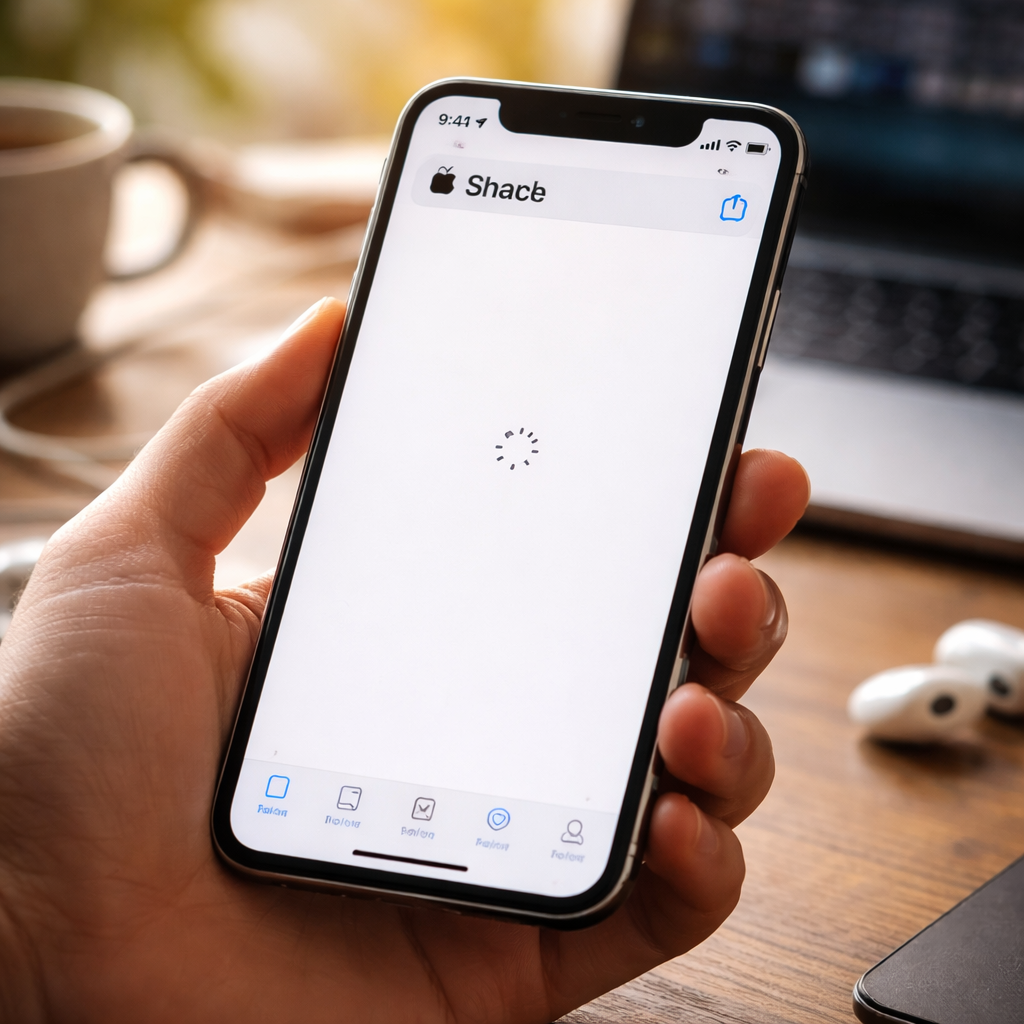
You tap the update button, nothing happens. Or the App Store just shows a blank screen, refuses to load, or keeps spinning forever. If the App store not working issue has caught you off guard, you’re definitely not alone — this is one of the most commonly reported frustrations among iPhone and iPad users worldwide, and the good news is that most causes are fixable without visiting any service center.
Why does the App Store stop responding in the first place?
Before jumping into fixes, it’s worth understanding what actually goes wrong. The App Store relies on several moving parts: your internet connection, Apple’s servers, your device’s local cache, and your Apple ID session. A problem with any single one of these can make the entire experience break down. Sometimes Apple’s own infrastructure is the culprit — their servers do go down occasionally. Other times it’s something entirely local to your device, like a corrupted cache or an expired login session.
Knowing the root cause saves time. Running through ten fixes blindly is frustrating; understanding the logic behind each step makes the process feel manageable.
Start with the simplest checks
It sounds obvious, but the most effective first step is checking Apple’s System Status page (available at apple.com/support/systemstatus). Apple maintains a real-time dashboard showing whether the App Store, Apple ID, or related services are experiencing outages. If there’s a yellow or red indicator next to the App Store, no amount of local troubleshooting will help — you simply have to wait it out.
If Apple’s services show green across the board, move on to your own setup:
- Check whether other apps that require internet are working normally
- Try switching between Wi-Fi and mobile data to rule out a network-specific issue
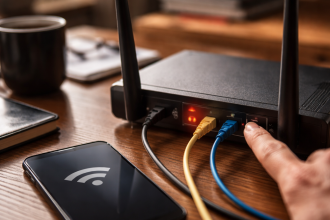
- If you’re on Wi-Fi, restart your router — not just your phone
- Disable VPN temporarily, as VPNs frequently interfere with App Store connectivity
A VPN routing your traffic through a server in another country can cause the App Store to behave as if you’re in a different region — leading to failed loads, missing apps, or purchase errors.
Your Apple ID session might be the hidden problem
One of the most underrated causes of App Store issues is a stale or broken Apple ID session. Over time, authentication tokens expire or get corrupted, and the App Store can silently fail to connect because of this — without showing you any clear error message.
To reset your session, go to Settings, tap your name at the top, scroll all the way down, and tap Sign Out. Wait about 30 seconds, then sign back in. This forces a fresh authentication handshake with Apple’s servers and resolves a surprising number of App Store loading problems.
While you’re in the Apple ID settings, also verify that your payment method is valid and up to date. An expired card or a billing issue can cause the store to partially break — especially when you’re trying to download free apps, which seems counterintuitive but does happen.
Device-level fixes that actually work
If the account-level reset didn’t help, the issue is likely sitting on the device itself. Here’s a structured approach that covers the most effective device-side solutions:
| Fix | What it addresses | How to do it |
|---|---|---|
| Force restart | Clears temporary software glitches | Press and release Volume Up, then Volume Down, then hold the Side button until the Apple logo appears |
| Clear App Store cache | Removes corrupted local data | Tap the App Store icon ten times rapidly — this triggers a cache refresh |
| Update iOS/iPadOS | Fixes known bugs affecting store functionality | Settings → General → Software Update |
| Check date and time settings | Incorrect time causes SSL certificate errors | Settings → General → Date & Time → enable “Set Automatically” |
| Reset network settings | Clears broken DNS or proxy configurations | Settings → General → Transfer or Reset iPhone → Reset → Reset Network Settings |
The date and time fix is surprisingly effective and often overlooked. When your device clock is even slightly off, it can cause secure connections to Apple’s servers to fail silently — resulting in a blank or frozen App Store screen.
When downloads freeze or apps won’t update
Sometimes the App Store itself loads fine, but downloads stall or updates get stuck in a permanent “Waiting” state. This is a slightly different problem with its own set of causes.
- Go to the App Store, find the stuck app, and tap it — sometimes this manually resumes a paused download
- Check your available storage in Settings → General → iPhone Storage; insufficient space blocks all downloads
- If an app shows “Waiting,” try offloading it first (Settings → General → iPhone Storage → select app → Offload App), then reinstalling
- Pause all other downloads and let the stuck one go through on its own
Low storage is one of the most common reasons downloads freeze — the system needs buffer space even if the app itself is small. Keeping at least 1–2 GB free at all times makes a noticeable difference in overall App Store stability.
Restrictions and Screen Time can silently block the store
This one catches people off guard, especially on devices shared with family members or set up under managed profiles. Screen Time settings in iOS include options to restrict App Store access, block app installations, or require a passcode for purchases. If these are enabled and you’ve forgotten about them, the App Store can appear broken when it’s actually just locked.
Navigate to Settings → Screen Time → Content & Privacy Restrictions → iTunes & App Store Purchases. Make sure “Installing Apps” and related options are set to “Allow.” If a Screen Time passcode is set and you don’t remember it, you’ll need to reset it through your Apple ID credentials.
What to do when nothing seems to help
If you’ve worked through every step above and the App Store is still refusing to cooperate, there are two remaining paths worth considering before contacting Apple Support directly.
The first is restoring your device through Finder (on Mac) or iTunes (on Windows). A full restore wipes the device and installs a clean version of iOS, which resolves deep software conflicts that no amount of settings tweaks can fix. Back up your data before doing this — either to iCloud or locally to your computer.
The second option is reaching out to Apple Support through their official support page or the Apple Support app. Describe exactly what you’ve already tried — this helps their team skip the generic troubleshooting steps and get to something more targeted. In rare cases, the issue may be tied to your specific Apple ID account, a regional billing flag, or a server-side problem that only Apple can resolve from their end.
Keep it running smoothly going forward
Once everything is back to normal, a few habits will help prevent the same problems from resurfacing. Keep your device updated — Apple regularly patches bugs that affect core system apps, including the App Store. Periodically review your payment methods in your Apple ID settings to make sure nothing has expired. Avoid third-party DNS services unless you’re technically confident in how they affect Apple’s content delivery network. And if you use a VPN regularly, consider adding a toggle to quickly disable it when App Store issues arise.
Most App Store problems are temporary and solvable. With a methodical approach — starting from the network level, moving through account settings, then device-level fixes — the vast majority of issues resolve within a few minutes.