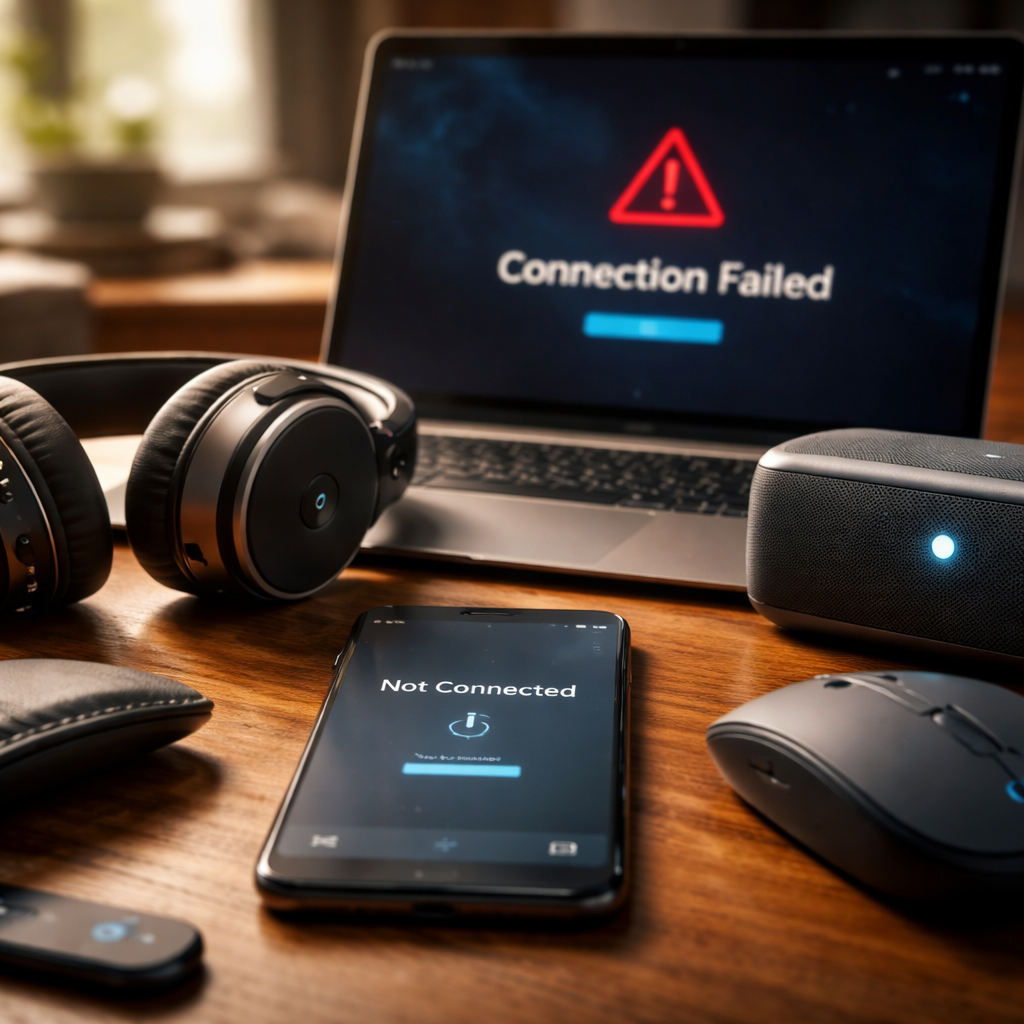
Your headphones suddenly go silent, the speaker refuses to pair, or the mouse cursor freezes mid-scroll — and the moment you realize Bluetooth not working is the culprit, frustration kicks in fast. The good news is that most Bluetooth failures follow predictable patterns, and there are reliable ways to sort them out without visiting a repair shop or replacing your device.
Why Bluetooth Fails More Often Than You’d Expect
Bluetooth technology is surprisingly sensitive to its environment. Unlike Wi-Fi, which operates on a relatively stable infrastructure, Bluetooth relies on short-range radio frequency signals that can be disrupted by physical obstacles, electromagnetic interference from other devices, and even software conflicts buried deep in your operating system.
The most common culprits behind a failed Bluetooth connection include outdated drivers, corrupted pairing data, interference from nearby 2.4 GHz networks, and power-saving settings that aggressively cut wireless functions. Understanding which category your problem falls into is half the battle.
Start Here: The Checks Most People Skip
Before diving into complex solutions, run through these quick checks. They sound obvious, but they resolve a surprisingly large portion of Bluetooth issues:
- Confirm Bluetooth is actually enabled on both the host device and the accessory.
- Check that the device you want to connect is in pairing mode — many accessories require a specific button hold to become discoverable.
- Make sure the accessory is charged. Low battery causes unstable or failed connections on many devices.
- Verify that airplane mode is completely off, not just toggled back on after a flight.
- Confirm the two devices are within a reasonable range — typically under 10 meters with no walls in between.
If all of the above check out and the connection still fails, you are likely dealing with a software or driver-level issue that needs a bit more targeted attention.
Fixing Bluetooth on Windows
Windows devices are particularly prone to Bluetooth issues after system updates, as driver compatibility can break silently in the background.
Open Device Manager and look for the Bluetooth adapter under the corresponding section. If you see a yellow warning icon, the driver needs attention. Right-clicking and selecting “Update driver” may resolve it instantly. However, if the adapter is not visible at all, the driver may have become corrupted — in this case, downloading the adapter’s driver directly from the manufacturer’s website is a more reliable route than using Windows Update.
Resetting the Bluetooth stack on Windows by removing all paired devices, restarting the Bluetooth Support Service from Services panel, and re-pairing from scratch solves connection issues in a significant share of cases.
Additionally, check power management settings. Go to Device Manager, open the properties of your Bluetooth adapter, and navigate to the Power Management tab. Uncheck the option that allows the system to turn off the device to save power. This is a frequently overlooked setting that causes intermittent disconnections.
Fixing Bluetooth on Android and iPhone
Mobile operating systems handle Bluetooth differently, but the troubleshooting logic follows a similar path.
| Step | Android | iPhone / iOS |
|---|---|---|
| Toggle Bluetooth off and on | Pull down Quick Settings panel | Settings → Bluetooth (not Control Center toggle) |
| Forget the device | Settings → Connected devices → tap device → Forget | Settings → Bluetooth → tap (i) icon → Forget This Device |
| Reset network settings | Settings → General Management → Reset → Reset Network Settings | Settings → General → Transfer or Reset iPhone → Reset → Reset Network Settings |
| Check for OS update | Settings → Software Update | Settings → General → Software Update |
One detail many users miss on iPhone: toggling Bluetooth off from the Control Center does not fully disable it — it only disconnects active connections temporarily. To truly reset the Bluetooth state, you must go through the Settings app.
When the Problem Is Interference, Not a Bug
Radio frequency interference is an underestimated cause of poor or dropped Bluetooth connections. Bluetooth operates on the 2.4 GHz band, which is shared with many Wi-Fi routers, baby monitors, microwaves, and other wireless devices. When these signals overlap, the result is instability rather than a complete failure — connections drop, audio stutters, or latency spikes.
If you notice Bluetooth working fine in one location but poorly in another, interference is likely the cause. Practical steps include moving the devices closer together, switching your Wi-Fi router to the 5 GHz band if your router supports dual-band, and removing any USB 3.0 hubs or drives from proximity — these are known to emit interference in the 2.4 GHz range.
macOS Bluetooth: The Cache Fix That Actually Works
Mac users sometimes experience a situation where Bluetooth appears to be on, the device shows as connected, but audio or data simply does not flow. This is often a corrupted Bluetooth preference file.
Navigating to the Library folder (hold Option while clicking Go in Finder), then going to Preferences and deleting the file named com.apple.Bluetooth.plist, followed by a system restart, clears the cached pairing and configuration data. After restart, macOS rebuilds this file cleanly, and in many cases, persistent Bluetooth issues disappear.
On newer macOS versions, holding Shift and Option while clicking the Bluetooth icon in the menu bar reveals a hidden debug menu that includes the option to reset the entire Bluetooth module — a powerful tool when standard fixes fail.
Hardware Failure vs. Software Problem: How to Tell the Difference
After trying every software fix, it is worth knowing whether the issue is physical. A quick way to test is to check if your Bluetooth hardware is even recognized at the system level — on Windows through Device Manager, on macOS through System Information under the Bluetooth section, and on Android through apps like Bluetooth diagnostics tools available on the Play Store.
If the adapter does not appear at all in system information, or if it disappears after a few seconds of being enabled, the antenna or chip may be damaged. This is especially common in laptops that have been dropped or exposed to moisture. In that scenario, an external USB Bluetooth adapter is a practical and cost-effective workaround.
When Nothing Else Works, Try This Before Giving Up
A full system restart sounds too simple to mention, but there is a meaningful difference between a restart and simply putting a device to sleep and waking it again. A proper restart flushes volatile memory, restarts background services, and re-initializes hardware modules — including the Bluetooth stack.
If you have been troubleshooting for a while with the device continuously running, a clean restart might resolve the issue in seconds. Combine it with forgetting all previously paired devices and setting everything up fresh, and you eliminate the most common sources of Bluetooth connection errors in one sweep.
Bluetooth problems rarely signal a dead device. In the vast majority of cases, they trace back to something fixable — a stale driver, a cached configuration, an interference source, or a setting quietly enabled by an update. Work through the problem methodically, and you are very likely to restore a clean, stable connection without spending a penny.