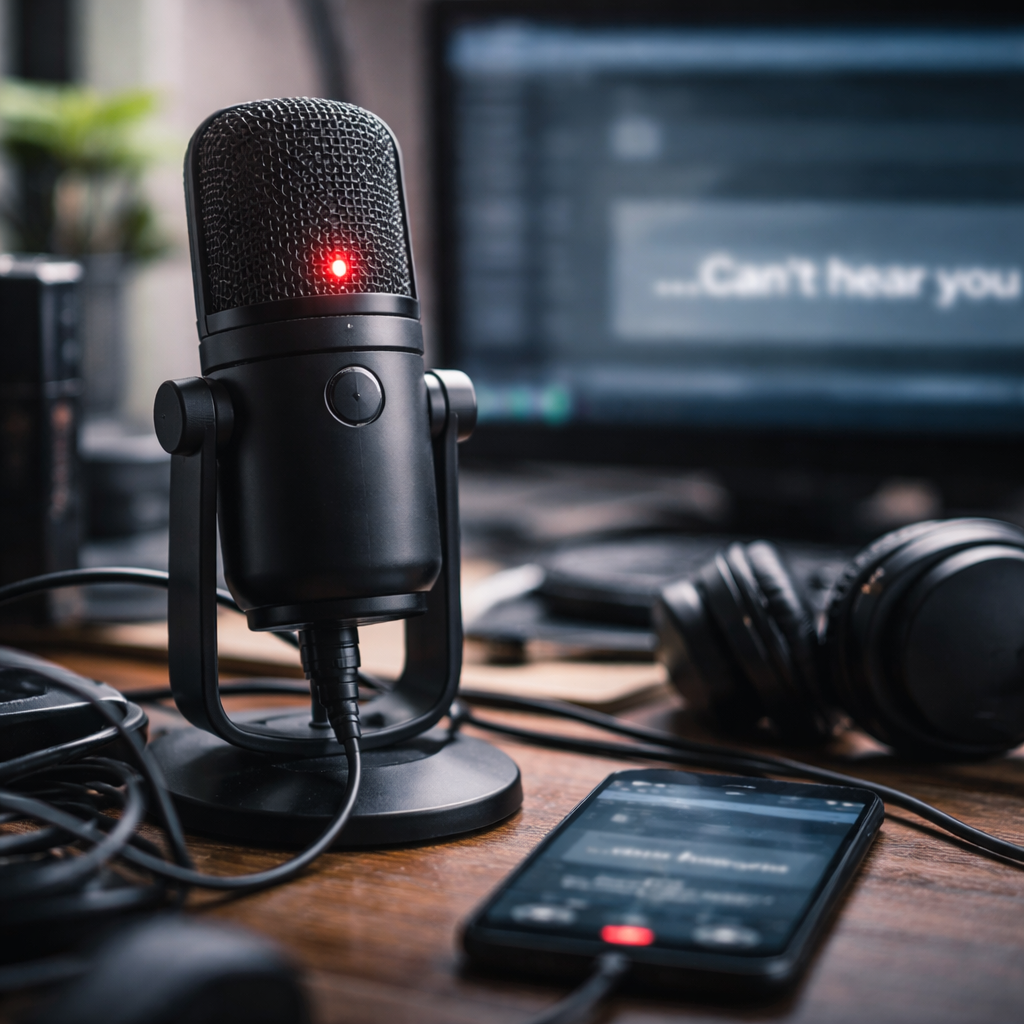
You’re on a video call, someone asks you something, and you see them typing “we can’t hear you” — that’s the moment microphone not working stops being a technical term and becomes a real problem. Before you restart your device for the third time or blame the app, it’s worth knowing that most audio input issues follow predictable patterns and can be resolved without any special tools or expertise.
Why your mic goes silent: the usual suspects
Microphone failures rarely happen without reason. The challenge is that the cause isn’t always obvious — it could be a software permission, a conflicting driver, a muted input channel, or something as simple as the wrong device selected in your settings. Understanding where to look first saves a lot of frustration.
Here are the most common reasons audio input stops working across Windows, macOS, and mobile devices:
- The microphone is muted at the system level or inside the app
- A different input device is selected as default
- The app doesn’t have permission to access the microphone
- An outdated or corrupted audio driver is interfering
- The physical connection is loose or the port is damaged
- Exclusive mode is enabled in Windows sound settings, blocking other apps
Start here: the checks most people skip
It sounds obvious, but checking physical connections is genuinely the first step — not because users are careless, but because cables and ports can fail gradually. A headset that worked yesterday may have developed a loose connection overnight. Plug the microphone into a different port, try a different cable if possible, and test it on another device to rule out hardware failure entirely.
Once hardware is confirmed, move to system-level audio settings. On Windows, right-click the speaker icon in the taskbar, open Sound Settings, and check which recording device is set as default. On macOS, go to System Settings → Sound → Input and make sure your microphone appears there and is selected. If you see the input level meter responding when you speak, the system recognizes the device — which means the problem is likely at the app or permission level.
A microphone that shows up in device manager but produces no input signal is often a driver issue, not a hardware fault. Reinstalling the audio driver resolves this in the majority of cases.
Permission settings: the silent blocker
Modern operating systems restrict microphone access by default until the user explicitly grants it. This is a privacy feature, but it’s also one of the most overlooked causes of mic issues — especially after an OS update that resets app permissions.
| Operating System | Where to Check Permissions |
|---|---|
| Windows | Settings → Privacy & Security → Microphone |
| macOS | System Settings → Privacy & Security → Microphone |
| Android | Settings → Apps → [App name] → Permissions |
| iOS/iPadOS | Settings → Privacy & Security → Microphone |
After granting permission, always restart the app — some applications cache permission states at launch and won’t recognize a change until they’re reopened. If the problem persists after that, test the microphone in a completely different app, such as a voice recorder, to isolate whether the issue is app-specific or system-wide.
Driver and software troubleshooting on Windows
Windows audio issues often come down to drivers. If your microphone was working and stopped after a system update, the driver update may have introduced a conflict. Here’s a reliable sequence to work through:
- Open Device Manager and expand the Audio inputs and outputs section
- Right-click your microphone device and select Update driver
- If that doesn’t help, choose Uninstall device, then restart — Windows will reinstall the driver automatically
- Check Sound settings and make sure the microphone isn’t set to zero volume under Recording devices → Properties → Levels
- Disable Exclusive Mode under the Advanced tab in the same Properties window
The Windows Troubleshooter for audio (Settings → System → Troubleshoot → Other troubleshooters → Recording Audio) can also detect common configuration problems automatically, though it doesn’t always catch driver conflicts.
When it’s a browser or communication app issue
Video conferencing tools like Zoom, Teams, and Google Meet have their own internal audio settings that operate separately from the operating system. You can have the correct microphone selected at the OS level and still have a different device active inside the app. Always check the audio settings within the application itself — look for a microphone selector in the settings or in the active call interface.
For browser-based tools, the issue is often a blocked site permission. In Chrome, click the lock icon in the address bar and check whether microphone access is allowed for that specific site. In Firefox and Safari, the same option appears in the site settings or address bar dropdown. Clearing the browser cache occasionally resolves stuck permission states that don’t respond to toggling.
Mobile microphone problems are different
On smartphones, physical obstruction is a surprisingly common cause of poor or absent microphone input. Phone cases, screen protectors extending over the mic grille, or simply lint in the microphone port can significantly reduce sensitivity or block audio entirely. A gentle clean with a dry toothbrush or compressed air often restores full function.
Beyond that, mobile mic issues follow the same permission logic as desktop systems. If a messaging or recording app isn’t picking up audio, verify that microphone access is enabled for that specific app in your phone’s privacy settings. On both Android and iOS, this is a per-app setting that can be accidentally revoked when updating the app or the OS.
If nothing works — before you give up
If you’ve worked through every software fix without success, testing the microphone on a completely separate device is the clearest way to confirm whether it’s a hardware problem. If the mic works on another computer or phone, the issue is with your system configuration. If it doesn’t work anywhere, the microphone itself has likely failed and needs replacement.
One last thing worth checking: some laptops have a physical mute button or a keyboard shortcut that disables the internal microphone independently of software settings. These are easy to trigger accidentally and just as easy to miss. Look for a mic icon on the function keys or check your laptop manufacturer’s documentation for hardware mute controls.
Audio input issues are almost always fixable — it’s mostly a matter of working through the right layers in the right order. Start with physical connections, move to system settings and permissions, then go deeper into drivers and app-level configuration. Most problems resolve somewhere in that sequence without ever needing professional repair.