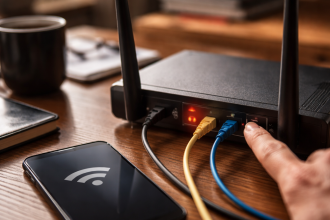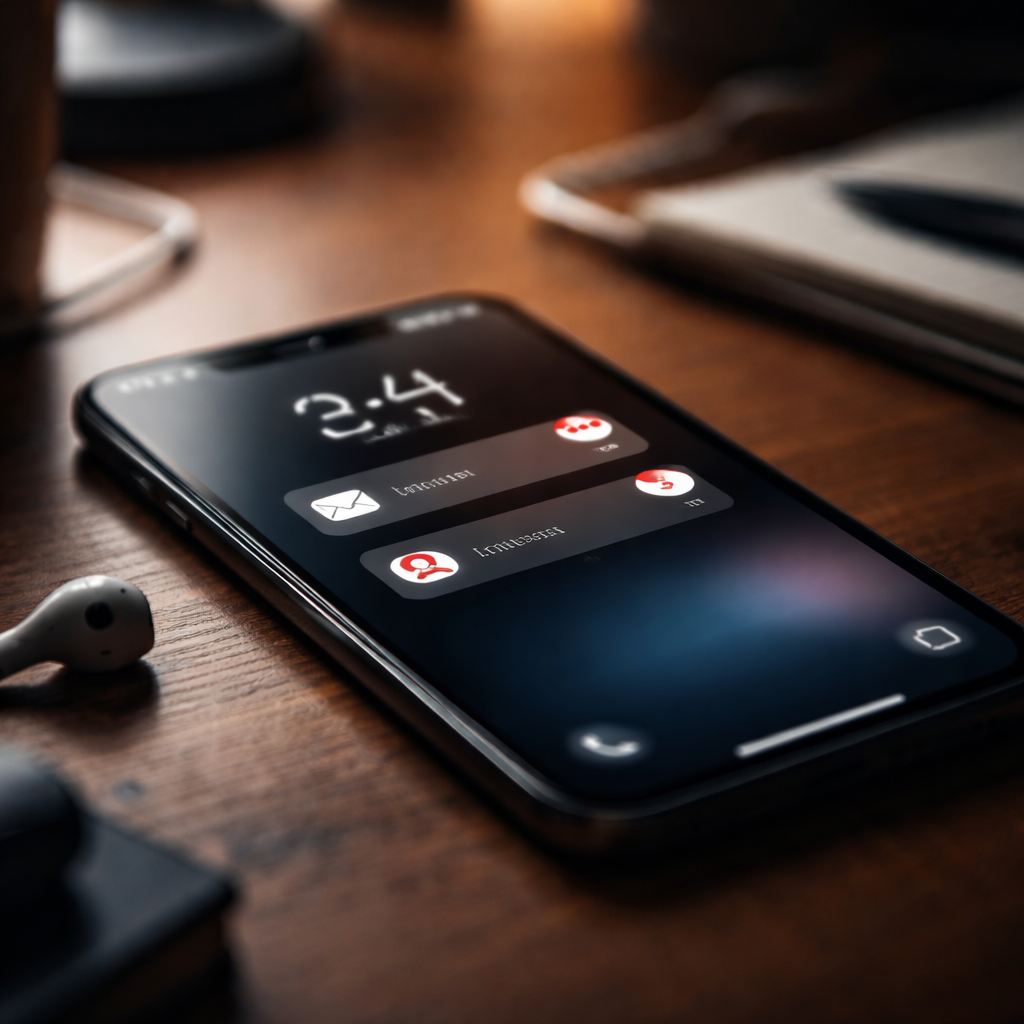
You check your phone and notice you missed something important — not because of a bad connection, but because notifications not working silently killed your awareness. This is one of the most underrated tech frustrations people face daily, and the reasons behind it are rarely obvious at first glance.
Why this happens more often than you think
Modern operating systems — both Android and iOS — are built with aggressive battery optimization and privacy layers. These systems are designed to limit background activity, and notifications are often caught in that net. What looks like a bug is frequently a feature working against you.
Apps need permission to send alerts, background refresh needs to be enabled, and Do Not Disturb can silently block everything without a single warning. The tricky part is that these settings don’t always reset themselves visibly — they shift quietly after a system update or app reinstall.
The most common culprits behind silent apps
Before jumping into fixes, it helps to understand the actual sources of the problem. Here’s what tends to cause notification delivery failures across most devices:
- Notification permissions were denied during app setup and never revisited
- Battery saver or power optimization mode is restricting background processes
- Do Not Disturb or Focus mode is active, even on a schedule you forgot you set
- The app itself has a built-in notification setting that overrides the system level
- A recent OS update changed default notification behavior
- The device’s connection to push notification servers was interrupted and not restored
Each of these causes requires a different fix, which is why blindly toggling airplane mode or restarting the phone rarely solves the issue for good.
Step-by-step: checking permissions and system settings
Start with the basics before going deeper. Open your device settings and navigate to the app that isn’t alerting you. Look for a “Notifications” section within the app’s settings — not inside the app itself, but in the system-level app info panel.
On Android, this is usually found under Settings → Apps → [App Name] → Notifications. On iOS, it’s under Settings → [App Name] → Notifications. Make sure the toggle is enabled and that the alert style is set to something visible — banners, sounds, or lock screen display.
Many users find that notifications were technically “on” but the alert style was set to “None” — meaning the app was allowed to notify, but had no way to actually display anything.
After confirming system permissions, go inside the app itself. Many apps — especially messaging platforms, email clients, and social media tools — have their own notification controls buried in account or profile settings. These can disable alerts completely regardless of what the system says.
Battery optimization: the hidden blocker
This is where Android users especially run into trouble. Manufacturers like Samsung, Xiaomi, Huawei, and OnePlus apply their own power management layers on top of stock Android. These layers can kill background processes for apps they deem “inactive,” which directly affects push notification delivery.
| Device Brand | Where to Disable Battery Optimization |
|---|---|
| Samsung | Settings → Battery → Background usage limits |
| Xiaomi / MIUI | Settings → Apps → Manage apps → [App] → Battery saver |
| Huawei | Settings → Battery → App launch → Manual management |
| OnePlus / OxygenOS | Settings → Battery → Battery optimization → [App] |
| Stock Android | Settings → Apps → [App] → Battery → Unrestricted |
Setting the problematic app to “Unrestricted” or “Don’t optimize” tells the system to leave its background processes alone — which is exactly what push notifications depend on.
When the problem is on the app’s server side
Not every notification failure is your fault or your device’s fault. Apps rely on push notification services — Apple Push Notification Service (APNs) for iOS and Firebase Cloud Messaging (FCM) for Android — to deliver alerts. If the app’s backend is experiencing issues, no amount of settings tweaking will help.
In this case, the best course of action is to check the app’s official status page or social media channels. Services like Downdetector can also show whether other users are reporting similar problems in real time. If the issue is widespread, patience is usually the only fix.
iOS-specific quirks worth knowing
Apple’s notification system is generally more consistent than Android’s fragmented ecosystem, but it comes with its own set of traps. Focus modes, for instance, can be tied to specific times of day, locations, or even which app is open — and they filter notifications aggressively.
Another common iOS issue involves notification grouping. When too many alerts stack up from one app, iOS can collapse them into a summary, which appears only once at a scheduled time. If you set up notification summaries without realizing it, alerts may feel delayed or missing entirely.
- Check Settings → Focus → and disable any active modes
- Go to Settings → Notifications → Scheduled Summary and review what’s included
- Make sure “Allow Notifications” is toggled on for critical apps
- Verify that Lock Screen, Notification Center, and Banners are all enabled for the app
When a simple reset actually does the job
After exhausting the targeted fixes, a network settings reset can sometimes resolve notification issues caused by broken push notification connections. On iOS, this is found under Settings → General → Transfer or Reset iPhone → Reset → Reset Network Settings. On Android, the path varies by device but is usually under Settings → General Management → Reset → Reset network settings.
Keep in mind that this will erase saved Wi-Fi passwords and Bluetooth pairings, so use it as a last resort rather than a first step. That said, it has a surprisingly solid track record for fixing persistent push delivery problems that nothing else seemed to touch.
Notifications are a small but genuinely important part of how people stay connected and informed. When that system breaks down quietly in the background, it rarely announces itself — which is exactly what makes it so frustrating to diagnose. Working through the layers methodically, from permissions to battery settings to app internals, gives you the best shot at actually fixing the root cause rather than just getting lucky with a restart.