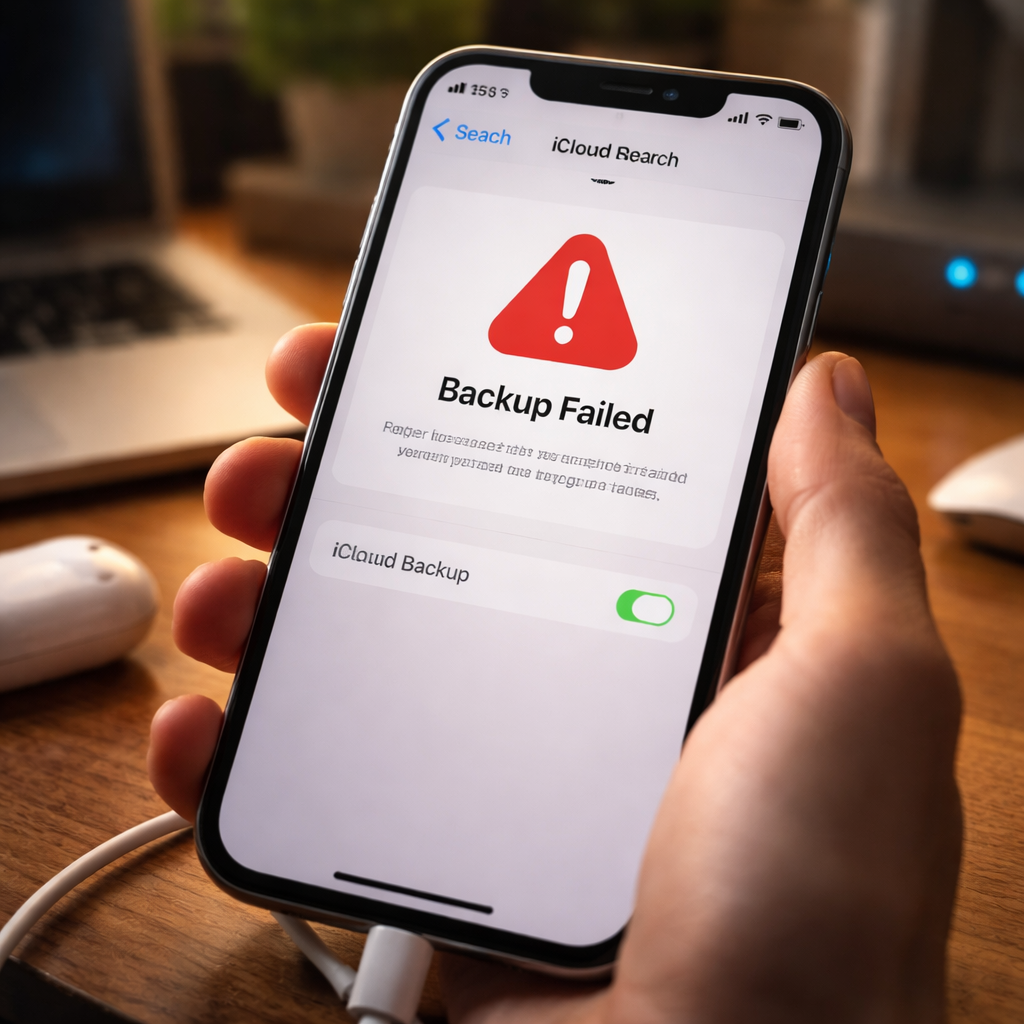
You open your iPhone, head to Settings, tap your Apple ID — and nothing. The backup just sits there, frozen or failing with a vague error message. If iCloud backup not working has become your daily frustration, you are not alone. This is one of the most searched Apple-related issues, and the reasons behind it are rarely obvious at first glance.
Why iCloud backups fail more often than you think
Most people assume the problem is on Apple’s end — a server outage or a bug in the latest iOS update. While that does happen occasionally, the overwhelming majority of backup failures come down to a handful of overlooked settings or account conditions that are completely fixable on your own.
Understanding what actually triggers a failed backup makes troubleshooting far less stressful. Instead of tapping random toggles and hoping for the best, you can work through the real causes systematically.
The most common culprits behind a failed backup
Before jumping into fixes, it helps to know what you are actually dealing with. These are the most frequently confirmed reasons iCloud backups stop working:
- Insufficient iCloud storage — the free 5 GB tier fills up quickly, especially with app data and photos
- Unstable or restricted Wi-Fi connection — iCloud backups require a stable Wi-Fi network and will not run on cellular data by default
- Device not charging during backup — iOS typically requires the device to be plugged in
- iCloud Drive or Backup toggle switched off in settings
- Outdated iOS version conflicting with iCloud services
- Apple ID sign-in issues or expired account sessions
- Large amounts of data that exceed the backup time window
What makes this tricky is that several of these issues can exist simultaneously, and your device won’t always tell you which one is the actual blocker.
Step-by-step: how to actually fix it
There is a logical order to troubleshooting this. Starting with the most disruptive fixes first wastes time. Here is a grounded, practical sequence that works for the vast majority of cases.
Check iCloud storage first
Go to Settings → [Your Name] → iCloud → Manage Account Storage. If you are at or near the limit, your backup cannot complete. You have two options: delete old backups from devices you no longer use, or upgrade your iCloud+ plan. Apple offers 50 GB, 200 GB, and 2 TB tiers at reasonable monthly rates.
A common mistake is assuming that deleting photos from your phone frees up iCloud backup space. It does not — photos stored in iCloud Photos count toward your storage separately from your backup.
Verify your network and charging conditions
Connect to a reliable Wi-Fi network and plug your device in. Then go to Settings → [Your Name] → iCloud → iCloud Backup and tap “Back Up Now.” Watch whether it starts. If it says “Last Successful Backup” with a recent date, the backup worked. If it stalls or throws an error, the network may still be the issue — try switching to a different Wi-Fi network or restarting your router.
Sign out and back into your Apple ID
Expired authentication sessions are an underappreciated cause of backup failures. Go to Settings → [Your Name] → scroll down → Sign Out. Then sign back in with your Apple ID credentials. This refreshes your session with Apple’s servers and often resolves silent authorization errors that block backups from completing.
Reset network settings
If nothing else has worked so far, go to Settings → General → Transfer or Reset iPhone → Reset → Reset Network Settings. This clears saved Wi-Fi passwords and VPN configurations, so make sure you have those saved elsewhere. After the reset, reconnect to Wi-Fi and attempt the backup again.
| Issue | Where to check | Fix |
|---|---|---|
| Not enough iCloud storage | Settings → iCloud → Manage Storage | Upgrade plan or delete old backups |
| Backup toggle off | Settings → iCloud → iCloud Backup | Enable the toggle |
| Wi-Fi not connected | Control Center | Connect to stable Wi-Fi |
| Apple ID session expired | Settings → [Your Name] | Sign out and sign back in |
| iOS out of date | Settings → General → Software Update | Install available updates |
When the backup keeps getting stuck mid-process
Sometimes the backup starts fine but never finishes — it just spins indefinitely. This usually happens when the amount of data being backed up is very large, or when a specific app’s data is corrupted and prevents the process from completing.
To isolate the problem, go to Settings → [Your Name] → iCloud → Manage Account Storage → Backups → [Your Device]. Here you can see which apps are taking up the most space in your backup. You can toggle off backups for specific apps — particularly large ones like games or streaming services — and then try again. This significantly reduces backup size and often resolves the stuck backup issue.
Turning off iCloud backup for apps that already sync their data to their own cloud — like Google Photos, Spotify, or WhatsApp (with its own backup) — is a smart way to keep your iCloud usage lean without losing anything important.
Using iTunes or Finder as a backup alternative
If iCloud continues to give you trouble and you need a reliable backup right now, don’t overlook the local backup option. On a Mac running macOS Catalina or later, connect your iPhone via USB, open Finder, select your device from the sidebar, and click “Back Up Now.” On Windows or older macOS versions, use iTunes instead.
Local backups are faster, don’t depend on your internet connection, and don’t consume iCloud storage. They are an excellent fallback — and for many users, a better primary backup method altogether.
What to do if nothing works
If you have worked through every step above and iCloud backup still refuses to cooperate, there are two paths forward. First, check Apple’s System Status page at apple.com/support/systemstatus — if iCloud Backup shows a yellow or red indicator, the problem is on Apple’s infrastructure side and you simply need to wait.
Second, contact Apple Support directly through the Support app or their website. When you reach out, have the following ready:
- Your iOS version number
- The exact error message shown (if any)
- How long the issue has been occurring
- What troubleshooting steps you have already tried
This gives the support agent enough context to move directly to advanced diagnostics rather than walking you through basic steps you have already completed.
Making sure your backup actually runs from now on
Once your backup is working again, it is worth setting up a routine that prevents the issue from coming back. iCloud backups run automatically overnight when your device is locked, connected to Wi-Fi, and charging — so the simplest habit is to plug in your phone every night on a reliable home network.
Check your last successful backup date every few weeks. It takes ten seconds: Settings → [Your Name] → iCloud → iCloud Backup. The date shown there tells you exactly when Apple last captured a full snapshot of your device. If it is more than a week old, something interrupted the automatic process and it is worth a quick investigation before it becomes a bigger problem.
Your data is worth protecting — and keeping your backup healthy is one of the lowest-effort, highest-impact habits you can build around your device.