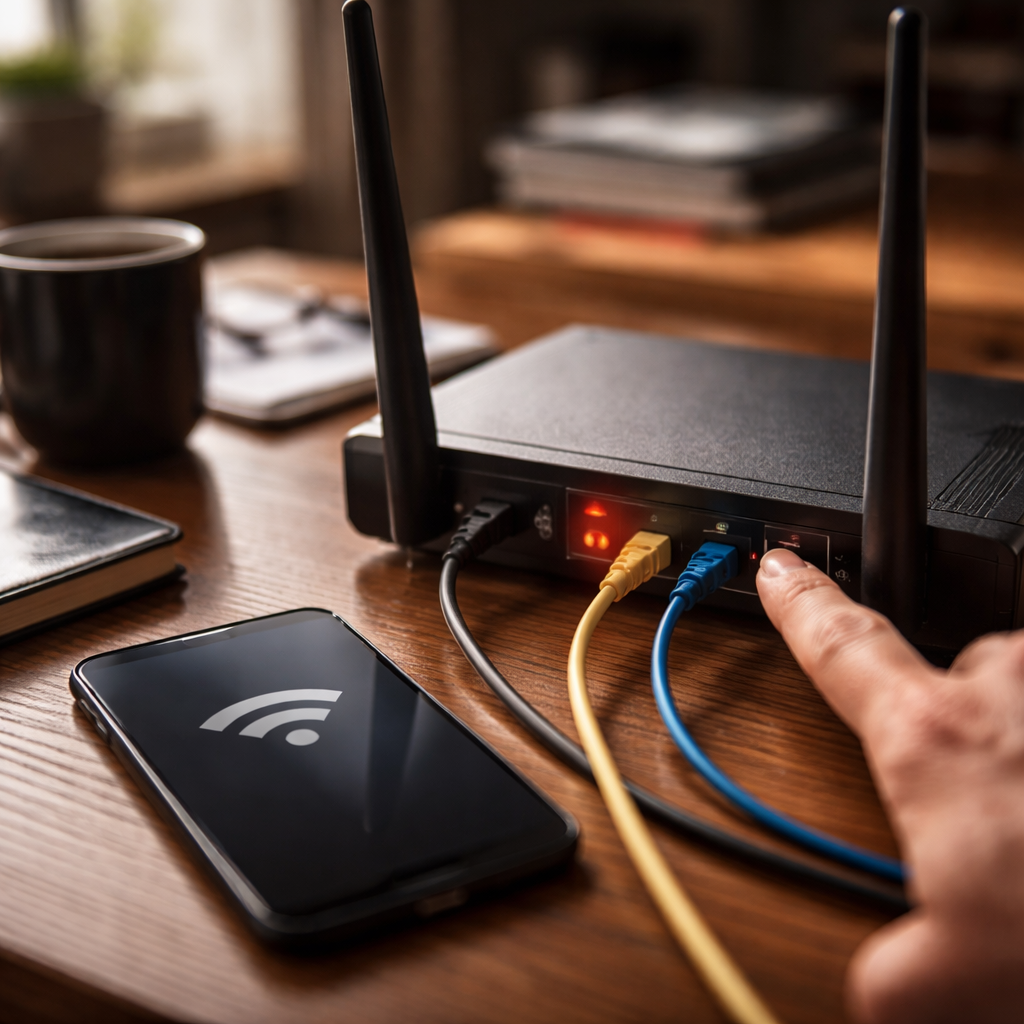
You restart the router, wait a few seconds, and… nothing. The wifi not working issue is one of the most frustrating tech problems people face daily — and the annoying part is that it rarely has one obvious cause. It could be the router, the device, the ISP, a software conflict, or something as simple as a misconfigured DNS. Before you call tech support or go buy a new router, work through what’s actually happening.
Start with the obvious — but don’t skip it
Most connectivity problems are solved in the first two minutes if you follow a logical sequence rather than randomly clicking through settings. The temptation is to jump straight to advanced fixes, but the basics catch the majority of issues.
- Restart your router and modem by unplugging them from power, waiting 30 seconds, then plugging the modem in first and the router second.
- Check if other devices can connect to the same network — this tells you immediately whether the problem is device-specific or network-wide.
- Make sure airplane mode is not enabled on your phone or laptop.
- Confirm you’re connecting to the correct network name (SSID), especially if there are multiple networks with similar names nearby.
- Check whether your internet plan is active and your bill is paid — ISPs do cut service without much warning.
If another device connects fine, the issue is with your specific device. If nothing connects, the problem is almost certainly the router, modem, or your internet provider.
When it’s a device problem
A single device losing wireless connectivity while others work normally points to a software or configuration issue on that machine. Here’s where to look:
On Windows
Open the Network Troubleshooter (Settings → System → Troubleshoot → Other troubleshooters → Internet Connections). It won’t always fix things automatically, but it often identifies the exact problem — like a misconfigured IP address or a disabled network adapter.
Also try flushing the DNS cache. Open Command Prompt as administrator and run these commands one by one:
- ipconfig /release
- ipconfig /flushdns
- ipconfig /renew
After that, check your network adapter drivers. Outdated or corrupted drivers are a surprisingly common cause of wireless connection failures, especially after system updates.
On Mac
Go to System Settings → Network → Wi-Fi and try turning it off and on. If that doesn’t help, remove your network from the preferred networks list and reconnect from scratch. You can also try creating a new Network Location under the Network settings panel — this resets all network preferences without affecting anything else on the system.
On smartphones
Forget the network and reconnect. If that doesn’t work, toggle airplane mode on and off, or try resetting network settings entirely. On both Android and iOS, a network settings reset will clear saved Wi-Fi passwords, VPN configurations, and Bluetooth pairings — so be prepared for that.
A useful test: connect your device to a mobile hotspot. If it works, your device’s wireless hardware is fine and the issue is with the router or your home network configuration.
Router issues and how to diagnose them
If no devices can connect, or the connection drops repeatedly, your router is the most likely culprit. Here’s a structured way to figure out what’s going wrong:
| Symptom | Likely cause | What to do |
|---|---|---|
| Router lights all off | Power issue | Check power cable and outlet |
| Internet light is red or off | ISP signal issue | Contact your internet provider |
| Wi-Fi light is on but no connection | Router configuration problem | Reset router to factory settings |
| Connection works but drops every few minutes | Channel interference or overheating | Change Wi-Fi channel, improve ventilation |
| Slow speeds on Wi-Fi but fast on cable | Wireless interference or outdated firmware | Update firmware, change frequency band |
One thing many people overlook: routers overheat. If yours is tucked inside a cabinet or surrounded by other electronics, that alone can cause random disconnections. Move it somewhere with open airflow and keep it away from microwaves and cordless phones, which operate on overlapping frequencies.
The channel and frequency band problem
Modern routers broadcast on two frequency bands — 2.4 GHz and 5 GHz. The 2.4 GHz band has longer range but gets congested easily in apartment buildings where dozens of networks overlap. The 5 GHz band is faster and less congested but doesn’t penetrate walls as well.
If you’re experiencing slow wireless speeds or intermittent drops, try switching your device to the other band. You can do this through your router’s admin panel, usually accessible at 192.168.1.1 or 192.168.0.1 in your browser.
While you’re in the admin panel, check what Wi-Fi channel your router is using. In the 2.4 GHz band, channels 1, 6, and 11 are the only non-overlapping ones. If your neighbors are all on channel 6, switching to 1 or 11 can make a noticeable difference in connection stability.
Firmware — the update most people never do
Router firmware updates fix bugs, patch security vulnerabilities, and often improve wireless stability. Most routers don’t update automatically. Log into your router’s admin interface and look for a firmware update section — the exact location varies by brand, but it’s usually under Advanced or Administration settings.
If your router is more than five years old and running outdated firmware that’s no longer supported by the manufacturer, replacing it is often more practical than troubleshooting further.
DNS, IP conflicts, and things that look like connection problems but aren’t
Sometimes your device shows it’s connected to Wi-Fi but you can’t actually load anything. This is often a DNS issue rather than a true connectivity problem. Your device connected to the router just fine — it just can’t resolve domain names into IP addresses.
A quick way to test this: try opening a website by its IP address directly. If that works, DNS is definitely the problem. The fix is simple — change your DNS servers to a public option like Google’s (8.8.8.8 and 8.8.4.4) or Cloudflare’s (1.1.1.1). You can change DNS settings on your device directly or inside the router admin panel to apply it network-wide.
IP address conflicts happen when two devices on the same network get assigned the same IP. It’s less common with modern routers using DHCP, but it does happen. Restarting both your device and the router usually resolves it by forcing a fresh IP assignment.
When the problem is your internet provider
If you’ve confirmed that your router is working (you can access its admin panel via a cable connection) but still have no internet, the issue is upstream — either your modem or the ISP itself. Check your provider’s website or app on mobile data for outage notifications. Most major ISPs have a status page or outage map.
If there’s no reported outage, contact support and ask them to run a line test remotely. They can often detect signal issues on your line without sending a technician — and if a technician is needed, requesting one sooner rather than later saves you days of downtime.
A few things worth keeping in mind long-term
Wireless connectivity problems are rarely random — they usually have a pattern. Connection drops at the same time every day? Could be a scheduled task conflicting with the network, a neighbor’s device causing interference, or your ISP throttling at peak hours. Drops only in certain rooms? A range issue, solved with a Wi-Fi extender or mesh network system.
Taking five minutes to observe when and where the problem happens saves hours of blind troubleshooting. And if you’ve gone through everything above and nothing has worked, the most pragmatic next step is a factory reset of your router — it’s a clean slate that eliminates almost every software-side issue the device could have accumulated over time.