You tap play, a video loads, the picture is perfect — but sound not working at all, not even a whisper. It’s one of those frustrating moments that feels simple on the surface but can have surprisingly varied causes hiding underneath. Before you restart your device for the third time or assume something is broken beyond repair, it’s worth knowing that most audio issues are entirely fixable without any technical background.
Why audio problems are rarely what they seem
Audio issues tend to fall into one of two broad categories: software-related and hardware-related. The tricky part is that they can look identical from the outside. A completely silent laptop might have a muted system volume, a corrupted audio driver, a misconfigured output device, or — less commonly — a damaged speaker. Jumping straight to hardware conclusions wastes time and money, so it always makes sense to rule out the software side first.
It also matters which device you’re dealing with. The troubleshooting path for a Windows PC differs from a Mac, an Android phone, or a smart TV. Each system manages audio differently, and understanding those differences saves a lot of guesswork.
Start with the obvious — but don’t skip it
It sounds almost too simple, but a significant number of audio issues come down to settings that got changed accidentally. Before digging into anything complex, run through this checklist:
- Check the physical volume buttons on your device — make sure they’re not turned all the way down.
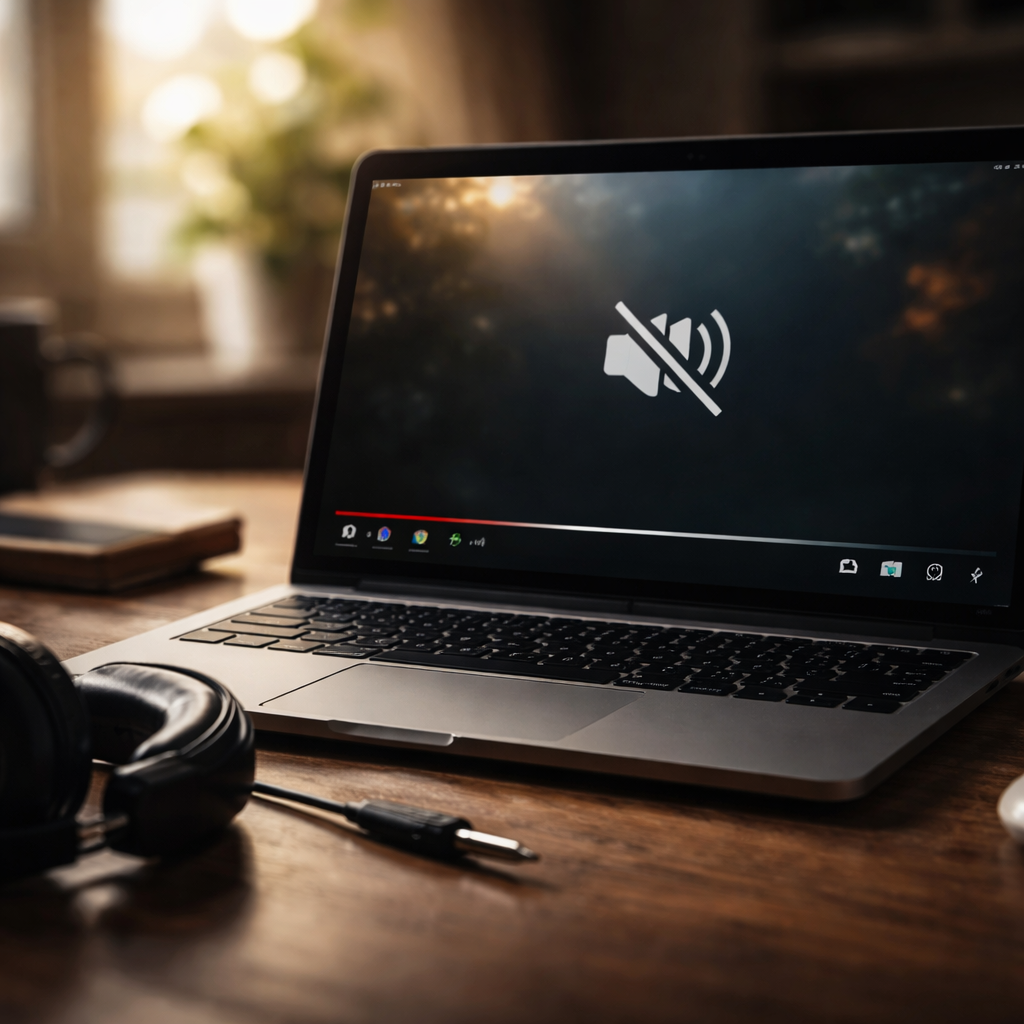
- Look for a mute icon in your system tray or status bar. One accidental keyboard shortcut can silence everything.
- If you’re using headphones or external speakers, unplug and replug the cable. Audio jacks can lose connection without looking visibly loose.
- On Windows, right-click the speaker icon and select “Open Volume Mixer” — individual apps can be muted separately from the system volume.
- On a Mac, go to System Settings → Sound and confirm the correct output device is selected.
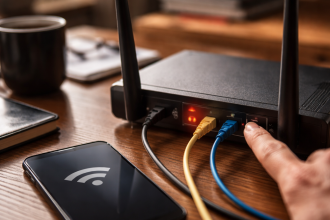
A device that’s connected to Bluetooth but out of range will often show no audio output — your phone thinks sound is going somewhere, but nothing is actually receiving it.
Audio drivers and system software: the usual suspects
On Windows computers, outdated or corrupted audio drivers are among the most common reasons sound stops working unexpectedly. After a system update, driver conflicts can appear without warning. Here’s a straightforward way to address this:
- Open Device Manager (search for it in the Start menu).
- Expand the “Sound, video and game controllers” section.
- Right-click your audio device and choose “Update driver.”
- If updating doesn’t help, try “Uninstall device” and then restart — Windows will reinstall the driver automatically.
Mac users encounter audio glitches less often, but they do happen. Resetting the Core Audio process through Terminal (using the command sudo killall coreaudiod) can resolve persistent silence without requiring a full restart. On mobile devices — both Android and iOS — a simple reboot clears the majority of temporary audio bugs caused by apps not releasing the audio channel properly.
Browser and app-level audio issues
If the problem only happens in a specific browser or application, the issue is almost certainly not with your system audio. Browsers like Chrome and Firefox have their own site permission settings and can mute individual tabs. Look for a speaker icon on the tab itself — a crossed-out version means that tab’s audio is muted.
| Scenario | Likely Cause | Quick Fix |
|---|---|---|
| Sound works in one app but not another | App-specific mute or audio routing | Check in-app audio settings |
| No sound only in browser | Tab muted or site permission blocked | Unmute tab; check site settings |
| No sound after Windows update | Driver conflict or rollback | Update or reinstall audio driver |
| Bluetooth device connected but silent | Wrong output selected or device out of range | Reconnect Bluetooth; check output device |
| Sound cuts out intermittently | Hardware connection issue or power settings | Check cable or disable audio power saving |
When it actually is a hardware problem
Once you’ve ruled out software, settings, and drivers, it’s reasonable to consider the physical components. Speakers can degrade over time, audio jacks can accumulate debris, and internal connections can loosen after physical impacts. A practical way to test this: plug in headphones and check if sound works through them. If it does, the built-in speaker is likely the issue. If headphones are also silent, the audio jack or internal audio chip may need professional attention.
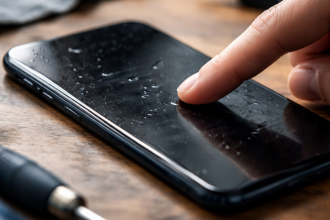
On smartphones, the speaker grille often collects dust and lint that physically blocks sound. Gently cleaning it with a dry, soft brush can make a noticeable difference — no tools or technical skills required.
A practical tip worth bookmarking
Windows has a built-in troubleshooter specifically for audio. To access it, go to Settings → System → Troubleshoot → Other troubleshooters → Playing Audio. It won’t fix everything, but it catches a surprising number of common issues automatically and often points you in the right direction even when it can’t resolve the problem on its own.
Getting your audio back without the headache
The good news is that the overwhelming majority of audio failures — across phones, computers, tablets, and smart TVs — have practical solutions that don’t require replacing anything or calling a technician. Working through the problem methodically, from the simplest explanations to the more technical ones, almost always leads to a resolution. The key is patience and not skipping steps just because they seem too basic. Sometimes the most straightforward answer is exactly the right one.