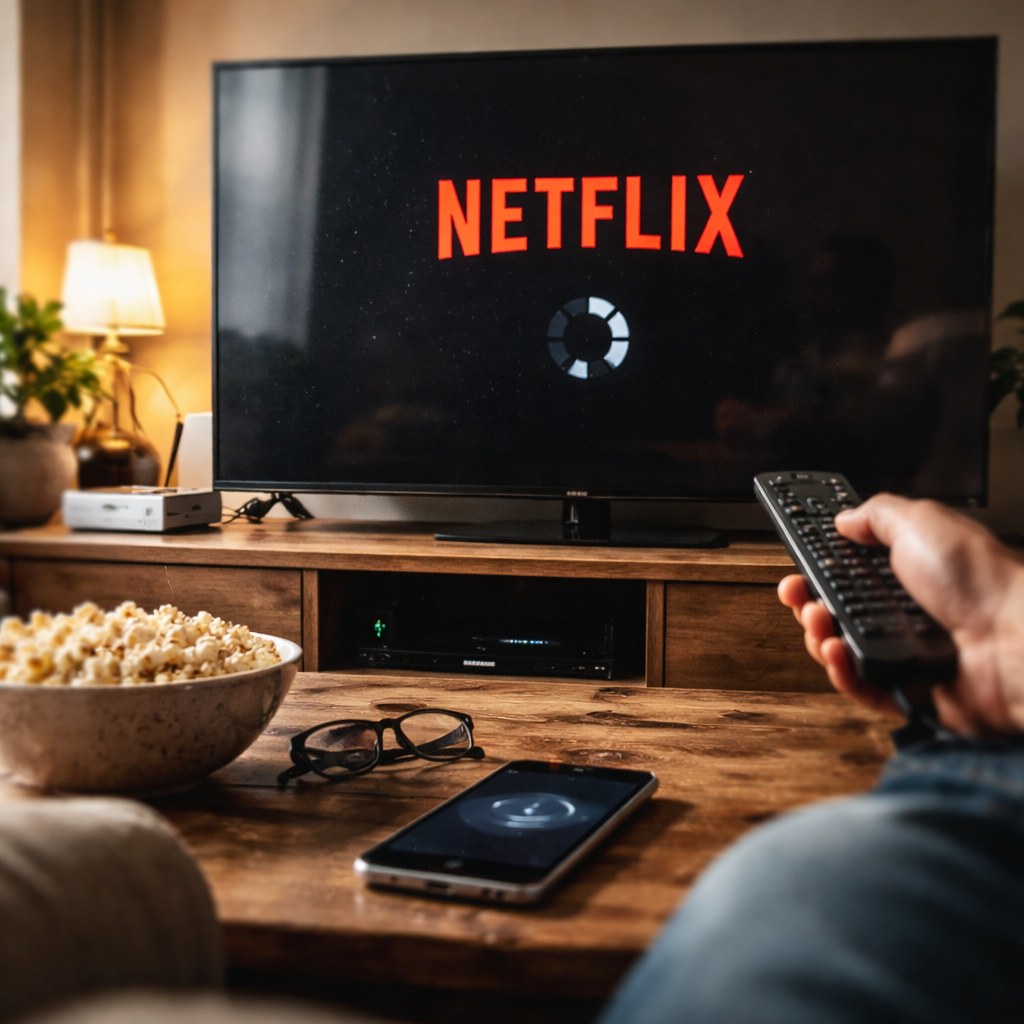
You tap play, settle into the couch, and nothing happens — the screen freezes, spins, or throws up an error code. If Netflix not working has become your Friday night nightmare, you’re far from alone. The problem almost always has a fixable cause, and in most cases you won’t need to contact support at all.
Why Netflix stops working in the first place
Before jumping into fixes, it helps to understand what actually goes wrong. Netflix relies on a stable chain: your device, your home network, your internet service provider, and Netflix’s own servers. A break anywhere in that chain can cause buffering, error codes, or a blank screen. The tricky part is figuring out where the break is.
Common culprits include outdated app versions, corrupted cached data, weak Wi-Fi signal, DNS issues, or a temporary outage on Netflix’s end. Less obvious causes involve VPN interference, overloaded routers, or a device that simply needs a fresh restart after days of standby mode.
Start with the basics before doing anything complicated
Nine times out of ten, the fastest fix is also the simplest one. Run through this checklist before touching any settings:
- Restart your streaming device completely — not just the app.
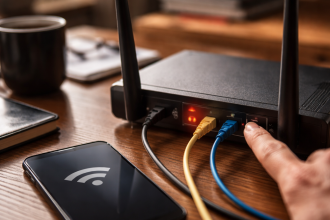
- Unplug your router and modem, wait 30 seconds, then plug them back in.
- Check whether other websites or apps load normally. If nothing works, the issue is your internet connection, not Netflix.
- Visit the Netflix Help Center or a service like Downdetector to confirm there’s no active outage.
- Disable any VPN or proxy service you might have running in the background.
A router restart resolves more streaming problems than any advanced troubleshooting step. It’s boring advice, but it works.
Error codes and what they actually mean
Netflix displays specific error codes instead of vague messages, which makes diagnosis much easier once you know how to read them.
| Error Code | What It Means | Primary Fix |
|---|---|---|
| UI-800-3 | Corrupted data stored on the device | Clear the Netflix app cache or reinstall the app |
| NW-2-5 | Network connectivity problem | Restart router; check DNS settings |
| F7111-5059 | VPN or proxy detected | Disable VPN and reconnect directly |
| UI-113 | Stored sign-in data is outdated | Sign out, clear app data, sign back in |
| TVQ-ST-131 | Network configuration issue on smart TVs | Restart TV and router together |
If your error code isn’t listed here, the Netflix Help Center has a full searchable database — simply type the code into their search bar to get device-specific instructions.
Fixing Netflix on specific devices
The approach varies depending on what you’re watching on. Here’s what works best for the most common platforms:
Smart TVs and streaming sticks
On Samsung, LG, or Roku devices, go into your app settings and clear the Netflix cache manually. If that option isn’t available, uninstall and reinstall the app entirely. Also check that your TV’s firmware is up to date — manufacturers push updates that fix streaming compatibility bugs, and many people never install them.
Smartphones and tablets
On Android, navigate to Settings → Apps → Netflix → Storage, then tap “Clear Cache” followed by “Clear Data.” On iOS, the quickest route is to delete the app and reinstall it from the App Store. Also make sure your mobile data or Wi-Fi connection has enough bandwidth — Netflix recommends at least 3 Mbps for standard definition and 25 Mbps for 4K streaming.
Desktop browsers
Browser-based Netflix issues are usually tied to extensions or outdated browser versions. Try opening Netflix in an incognito window first — if it works there, a browser extension is blocking playback. Common offenders include ad blockers, privacy shields, and certain security extensions. Updating your browser or switching to a different one (Chrome tends to have the broadest Netflix compatibility) often resolves playback errors immediately.
When the problem is your internet speed
Slow or unstable internet is behind a surprising number of Netflix streaming problems. Run a speed test at fast.com — it’s Netflix’s own testing tool and gives you a realistic picture of what the service is actually receiving. If your results are significantly lower than your plan’s advertised speed, contact your internet provider.
If your speed is fine but streaming still stutters, check how many devices are sharing the connection simultaneously. A household with several people gaming, video calling, and streaming at once can easily overwhelm even a fast connection. Most modern routers let you prioritize streaming traffic through a feature called QoS (Quality of Service) — enabling it can make a noticeable difference without upgrading your plan.
One last thing worth checking
If you’ve worked through every step above and Netflix still refuses to cooperate, check your account status. Payment failures silently suspend accounts, and many users don’t realize their subscription has lapsed until they’re locked out mid-season. Log into your Netflix account through a browser, navigate to Account, and confirm your membership is active and your payment method is valid.
Also worth a look: the number of simultaneous streams allowed by your plan. If someone else in the household — or someone you’ve shared credentials with — is already using the maximum number of streams, you’ll be blocked from starting a new one. Upgrading your plan or managing active sessions from the Account page solves this without any technical troubleshooting at all.
Most Netflix problems are temporary and solvable in under five minutes. Knowing where to look makes all the difference between a frustrating evening and getting back to your show without losing too much of it.