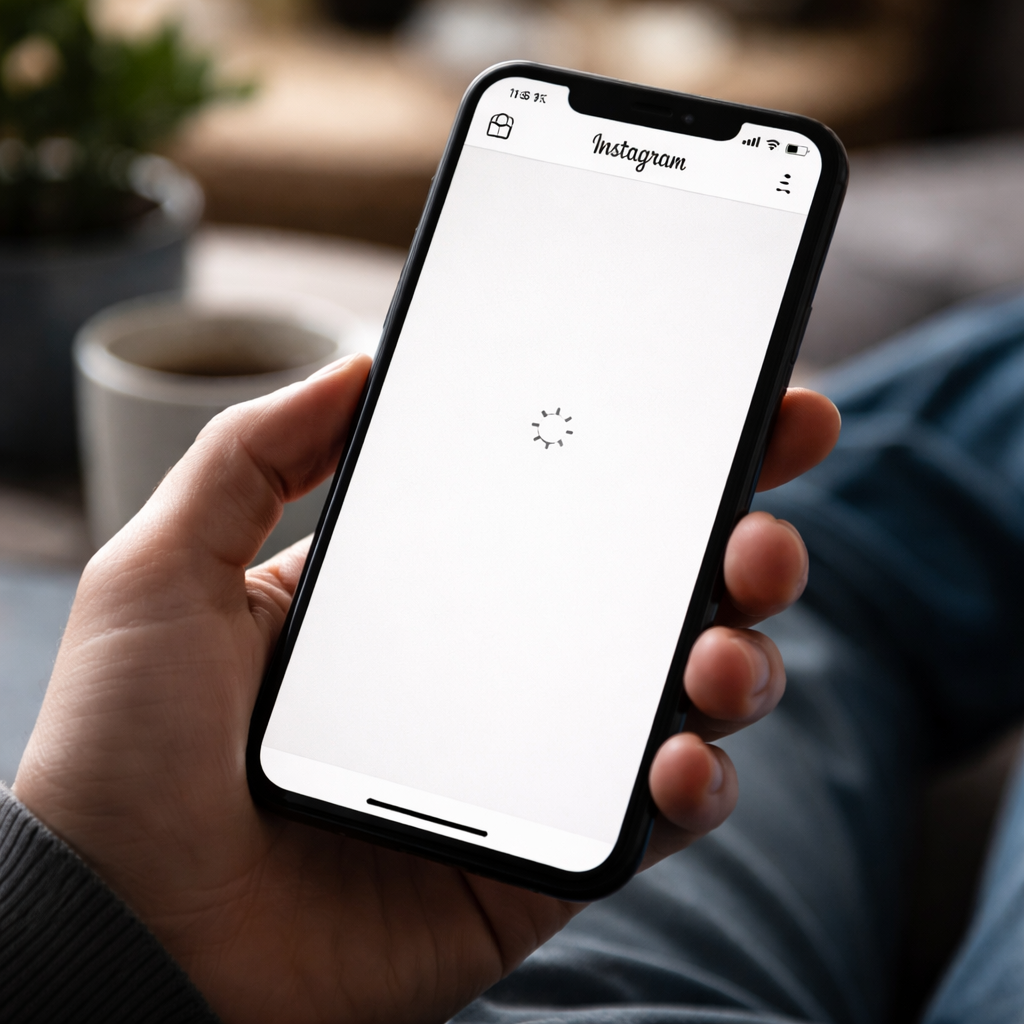
You open the app, and nothing loads — no feed, no stories, no messages. If Instagram not working is something you’re dealing with right now, you’re far from alone. Millions of users run into this frustration regularly, and in most cases, the fix is simpler than you’d expect.
Why Instagram stops working in the first place
Before jumping to solutions, it helps to understand what’s actually going wrong. Instagram issues typically fall into a few distinct categories: server-side outages that affect everyone at once, local connectivity problems tied to your device or network, and app-level glitches caused by outdated software or corrupted cache data.
The tricky part is that these problems can look identical from the user’s perspective — a blank screen is a blank screen. But diagnosing the root cause saves you from wasting time on fixes that won’t work.
Start here: check Instagram’s server status
The very first thing worth doing is ruling out a platform-wide outage. If Instagram’s servers are down, no amount of restarting your phone will help.
Head to a third-party status tracker like Downdetector and search for Instagram. If you see a spike in reported issues from other users in the past hour, the problem is on Meta’s end — and all you can do is wait it out. These outages usually resolve within an hour or two.
A quick way to confirm a server issue: check Instagram’s official Twitter/X account. During major outages, they sometimes post updates, and the replies section fills up fast with affected users.
Common Instagram problems and their actual fixes
Once you’ve ruled out a server outage, the issue is almost certainly local. Here’s a breakdown of the most frequent problems and what actually works:
| Problem | Most likely cause | Fix |
|---|---|---|
| Feed not refreshing | Poor internet connection | Switch between Wi-Fi and mobile data |
| App crashes on open | Corrupted cache or outdated app | Clear cache or update the app |
| Videos won’t play | Slow connection or data saver mode | Check connection speed, disable data saver |
| DMs not loading | App bug or account-specific glitch | Log out and log back in |
| Stories stuck on loading | Cache overload | Clear app cache |
Clear the app cache
On Android, go to Settings → Apps → Instagram → Storage → Clear Cache. This removes temporary files that can build up and cause the app to behave unpredictably. On iPhone, the equivalent is offloading the app (Settings → General → iPhone Storage → Instagram → Offload App), which clears cache without deleting your account data.
Update or reinstall the app
Running an older version of Instagram is a surprisingly common source of bugs. Check the App Store or Google Play for pending updates. If the app is already up to date and still misbehaving, a clean reinstall often solves what simple updates can’t — especially after a major Instagram version change.
Check your internet connection
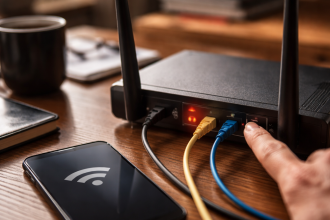
This sounds obvious, but it’s worth being thorough. Open a browser and try loading a few different websites. If those load slowly too, the issue is your network. Try toggling airplane mode on and off to reset the connection, or switch from Wi-Fi to mobile data to isolate which one is the problem.
- Restart the Instagram app completely
- Reboot your phone
- Switch networks (Wi-Fi ↔ mobile data)
- Clear app cache
- Check for app updates
- Log out and back into your account
- Reinstall Instagram as a last resort
When your account is the issue, not the app
Sometimes Instagram loads fine for others but acts up specifically for your account. This can happen if your account has been temporarily flagged for unusual activity, or if you’ve recently changed your password and the app session hasn’t refreshed properly.
In these cases, logging out from all devices via Instagram’s security settings and logging back in often clears the problem. If you suspect your account was compromised or restricted, check your email for any messages from Instagram about account status — Meta typically sends a notification when any action is taken.
Instagram not loading on a specific device
If you notice Instagram works fine on another phone or when accessed via a browser at instagram.com, but fails on one specific device, the problem is almost certainly app or device-related rather than account-related.
- Check whether your operating system is up to date — older iOS or Android versions can conflict with newer app builds
- Make sure Instagram has the necessary permissions (camera, microphone, storage) in your device settings
- If you use a VPN, try disabling it — VPNs can interfere with Instagram’s connection in some regions
- Check if your device’s date and time settings are correct — incorrect system time can cause authentication failures
The fix that people overlook most often
A full device restart — not just closing the app, but actually powering the phone off and on — clears temporary system processes that can quietly block apps from connecting properly. It’s not glamorous advice, but it resolves a surprising number of Instagram loading issues that nothing else seems to touch.
If you’ve worked through every step on this list and Instagram still isn’t functioning, the most reliable next move is to report the issue directly through the app (Settings → Help → Report a Problem) and wait. Persistent bugs on specific accounts or devices are occasionally tied to backend issues that only Meta’s team can resolve — but they do get fixed, usually within a few days.