Few things are as frustrating as pulling out your phone to share a connection, only to find your hotspot not working at the worst possible moment. Before you call your carrier or start factory resetting everything in sight, it’s worth understanding what’s actually happening under the hood — because in most cases, the fix takes under five minutes.
Why your hotspot stops working in the first place
Mobile hotspots rely on several layers working in sync: your carrier’s data plan, your device’s network stack, the Wi-Fi radio hardware, and whatever device is trying to connect. When any one of those layers misbehaves, the whole chain breaks. That’s why “my hotspot isn’t connecting” can mean a dozen different things depending on the setup.
The most common culprits fall into a few clear categories. Carrier-side restrictions are more frequent than people realize — some plans silently disable hotspot functionality or throttle it after a certain threshold. On the device side, software glitches, outdated system builds, and misconfigured APN settings can all cause the feature to fail silently.
The quick checks most people skip
Before diving into advanced troubleshooting, run through these first. They sound obvious, but they solve the problem more often than any deep-dive setting change.
- Confirm that mobile data is actually active and working — open a browser while hotspot is off and check if pages load.
- Toggle Airplane Mode on, wait ten seconds, then turn it off and re-enable the hotspot. This forces a full radio reset.
- Check that your data plan includes hotspot or tethering — log into your carrier account or call support to verify.
- Restart both the host device and the device trying to connect.
- Make sure the hotspot password is entered correctly on the connecting device, including case sensitivity.
A surprising number of hotspot issues trace back to a single cause: the device is connected to Wi-Fi itself, and some Android builds disable mobile data when Wi-Fi is active, cutting off the hotspot’s data source entirely.
Platform-specific fixes worth knowing
Android and iOS handle hotspot functionality differently, and the fixes aren’t always interchangeable. Here’s what tends to work on each platform.
Android
On Android devices, go to Settings, then Network or Connections, and look for Mobile Hotspot and Tethering. If the toggle is grayed out, your APN settings may be the issue. Navigate to Mobile Networks, then Access Point Names, and verify that the APN configuration matches what your carrier recommends — this information is usually available on the carrier’s support page. Resetting APN settings to default often resolves the problem immediately.
Another Android-specific issue: battery optimization. Some devices aggressively kill background services including the hotspot daemon when battery saver kicks in. Disable battery optimization for the hotspot feature or switch off power saving mode temporarily to test.
iPhone
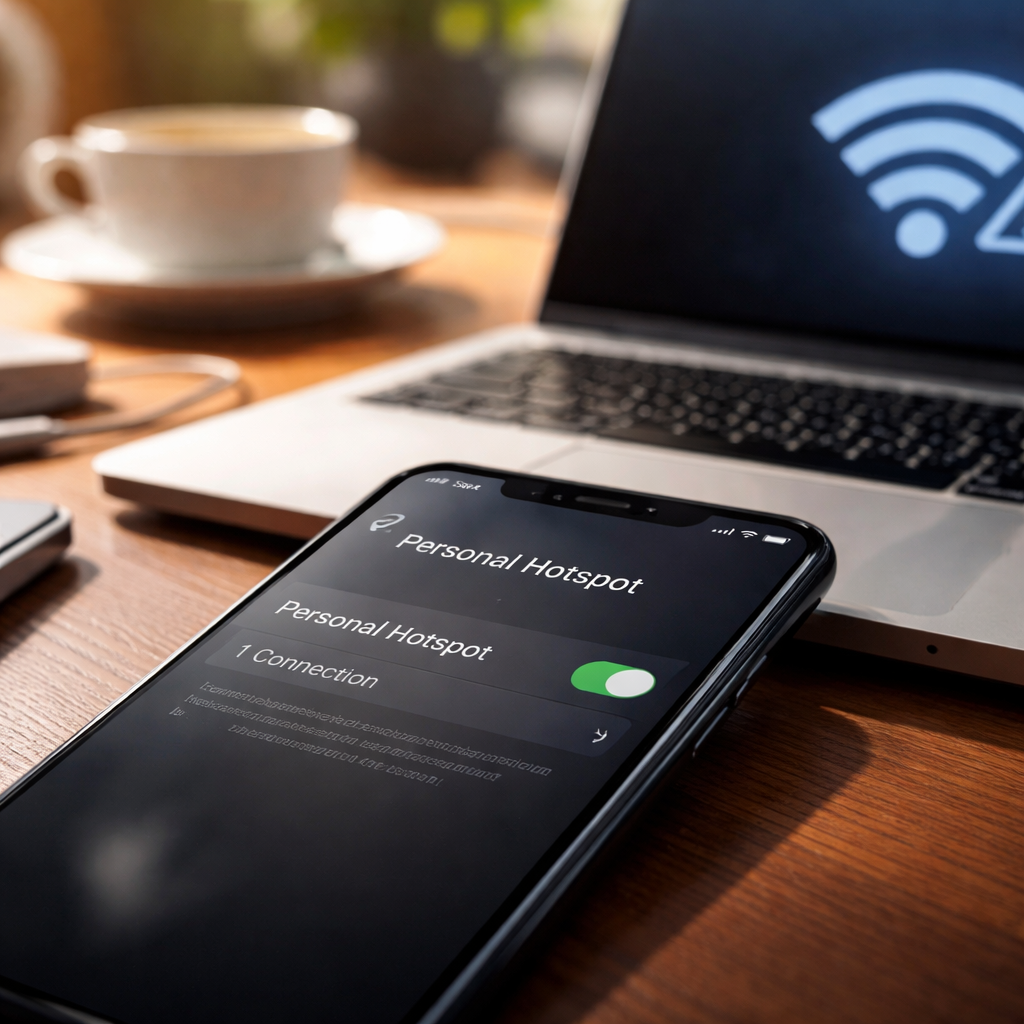
On iPhone, Personal Hotspot lives under Settings and then Cellular or Mobile Data. If it’s missing entirely, your carrier may need to provision the feature on their end — a quick call usually sorts this out. If it’s visible but not connecting, go to Settings, then General, then Transfer or Reset iPhone, and choose Reset Network Settings. This clears saved Wi-Fi passwords and VPN configurations, so be prepared to re-enter those afterward.
Also worth checking: the “Allow Others to Join” toggle inside the Personal Hotspot menu. It can accidentally get turned off, especially after an iOS update.
When the hotspot connects but there’s no internet
This is a separate and often more confusing scenario. The connecting device shows it’s linked to the hotspot, but nothing loads. In this case, the problem isn’t the hotspot itself — it’s the data path.
| Symptom | Likely cause | What to try |
|---|---|---|
| Connected but no internet on all devices | Mobile data is down or blocked | Check carrier status page, disable Wi-Fi Calling |
| One device connects fine, another doesn’t | IP conflict or client-side DNS issue | Forget and reconnect, change DNS to 8.8.8.8 on client |
| Works briefly then drops | Carrier throttling or hotspot data cap | Check data usage in carrier account |
| Hotspot visible but not joinable | Max connected devices reached | Disconnect unused devices from hotspot |
Network settings reset — when and how to use it
A full network settings reset is the closest thing to a reliable last resort before escalating to the carrier. It clears all network-related configurations — cellular, Wi-Fi, Bluetooth pairings, VPN profiles — and returns them to factory defaults. On both Android and iOS this option is found somewhere within Settings under General or System, then Reset.
It’s a more surgical option than a factory reset and resolves the majority of persistent tethering issues that don’t respond to simpler fixes. After the reset, re-enable the hotspot and test before reconfiguring anything else — this tells you whether the base configuration is healthy.
If nothing has worked yet, it’s time to contact your carrier
At this point, the problem is likely account-level rather than device-level. Carriers can see whether hotspot is provisioned on your line, whether there are data restrictions active, and whether there are any network-side anomalies affecting your account. When you call, have your account number ready and ask specifically about hotspot provisioning and tethering permissions on your plan — not just general data support. The distinction matters because frontline agents sometimes conflate the two.
It’s also worth testing the hotspot in a completely different location if possible. Intermittent signal issues at a specific location can look exactly like a device or plan problem and will send you down an unnecessary troubleshooting rabbit hole.