Your phone suddenly stops recognizing your face — and face id not working is one of those frustrating moments that feels minor but instantly disrupts your entire routine. Before assuming the worst, know this: most cases are fixable within minutes, and the cause is rarely hardware failure.
Why Face ID fails more often than you think
Face ID relies on an intricate system of infrared sensors, dot projectors, and machine learning algorithms that map your facial geometry in three dimensions. Any interference with this process — from a smudged camera lens to a software glitch — can break the recognition chain entirely. Understanding what typically goes wrong helps you target the right fix instead of randomly toggling settings.
The most commonly overlooked culprits are environmental rather than technical. Bright sunlight shining directly at your face, an unusual angle, or even a new pair of glasses can confuse the sensor. The system constantly learns, but it needs a little help from you sometimes.
The most common reasons and what to do about each
Rather than running through a generic checklist, let’s look at specific scenarios that cause facial recognition to stop working — and the targeted action each one requires.
Physical obstruction
A screen protector that covers the TrueDepth camera area, a smear of sunscreen on the lens, or even a bulky phone case nudging over the sensor strip — these are surprisingly frequent causes. Wipe the front camera area gently with a microfiber cloth and make sure nothing is physically blocking the top of the screen.
Appearance changes
Significant changes in your appearance — a beard grown out, new eyeglasses, a medical mask, heavy makeup — can push Face ID past its adaptive threshold. The system does update its facial map over time when you enter your passcode after a failed scan, but large changes happen faster than it can adapt.
If you’ve recently changed your look significantly, resetting Face ID and enrolling a fresh scan is almost always faster than waiting for the system to catch up on its own.
Software and iOS/system issues
After a system update, Face ID occasionally behaves erratically. This is typically a temporary calibration issue that resolves after a restart or a follow-up software patch. Always check whether your device is running the latest version of its operating system before going deeper into troubleshooting.
Step-by-step troubleshooting that actually works
Work through these steps in order. Most people find a resolution before reaching step five.
- Restart your device completely — not just lock and wake it. A full restart clears temporary system states that can interfere with biometric sensors.
- Clean the front-facing camera area with a dry, lint-free cloth.
- Go to Settings → Face ID & Passcode and confirm that Face ID is enabled for the functions you need (unlock, App Store, payments).
- Check that no screen protector or case is physically touching the sensor notch or Dynamic Island area.
- Select “Reset Face ID” and re-enroll your face from scratch, following the on-screen circle motion carefully and without rushing.
- Update your device to the latest available system software.
- If none of the above helps, test Face ID in a different lighting environment — indoors under neutral light works best for enrollment and testing.
| Symptom | Likely cause | Recommended action |
|---|---|---|
| Face ID grayed out in settings | Parental controls or MDM restriction | Check Screen Time or device management profile |
| Works sometimes, fails in sunlight | Infrared interference from direct sun | Shade the screen, adjust angle |
| Fails after iOS update | Software calibration issue | Restart device, reset Face ID |
| Face ID not available after drop | Possible hardware damage to TrueDepth camera | Contact Apple Support or authorized repair |
| Locks out after 5 failed attempts | Security lockout by design | Enter passcode to restore access |
A few things worth knowing before you reset
Resetting Face ID is non-destructive — your apps, data, and settings stay exactly where they are. The only thing deleted is the stored facial geometry data, which is encrypted and kept in the device’s Secure Enclave anyway. You’re not losing anything sensitive; you’re simply teaching your phone what your face looks like again.
Also worth noting: iPhone allows you to store an alternate appearance. If you regularly wear glasses, a hat, or change your look seasonally, setting up a second Face ID profile for that alternate look can prevent future recognition failures without needing to reset every time.
When the problem isn’t something you can fix yourself
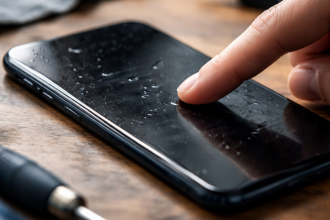
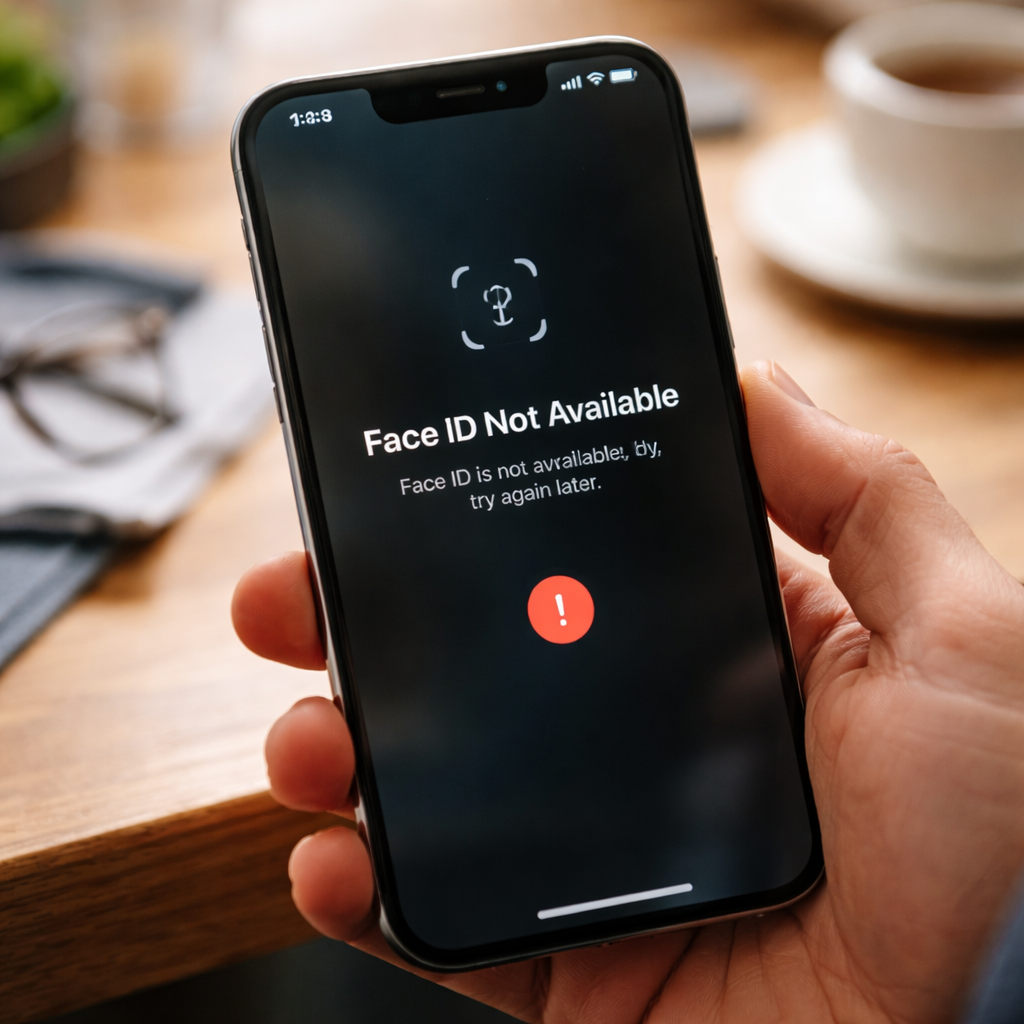
If your phone was dropped, exposed to liquid, or if Face ID displays a persistent error message saying the feature is unavailable — those are signs that the TrueDepth camera system may have sustained physical damage. In this case, software-based fixes won’t help because the problem exists at a hardware level.
Unauthorized repairs that involve replacing the screen or front camera components can also permanently disable Face ID, since Apple links the TrueDepth module to the device’s logic board during manufacturing. If this applies to your situation, an Apple Store or Apple Authorized Service Provider is the only path forward.
Getting Face ID reliable for the long term
Once you’ve resolved the immediate issue, a few habits can keep facial recognition working smoothly over time. Keep your software updated, avoid screen protectors that extend over the camera housing, and re-enroll Face ID after any significant change to your appearance. If you use your phone in extreme conditions — very bright outdoor environments or cold weather — be aware that performance can vary and that’s entirely normal behavior for the sensor technology involved.
Face ID is one of the most seamless authentication systems available on consumer devices, but it does rely on a set of ideal conditions to function at its best. A little understanding of how it works goes a long way toward keeping it reliable — and toward fixing it quickly when it isn’t.