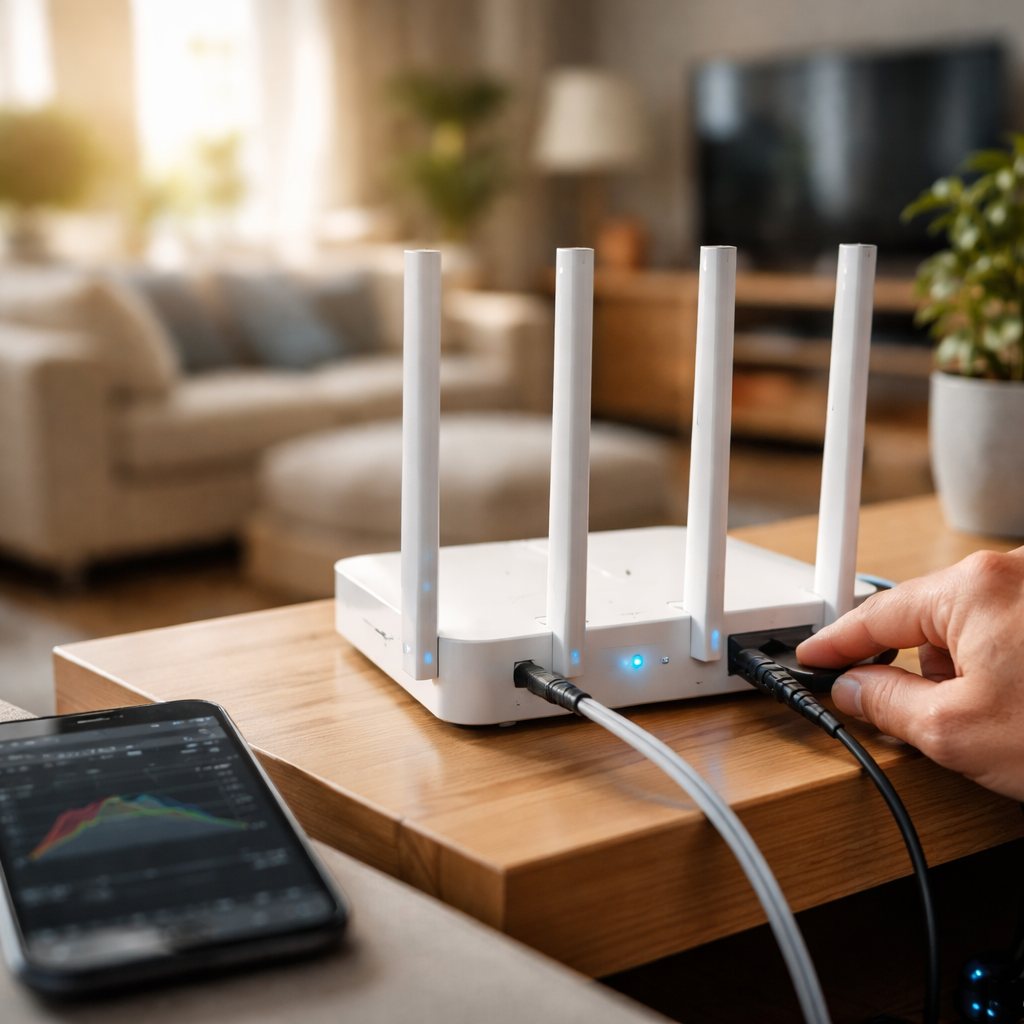
Most people blame their internet provider the moment speeds drop — but the real answer to how to fix slow wifi is usually hiding somewhere between your router’s position, your device settings, and a few habits you probably never thought twice about. The good news? The majority of slowdowns are fixable without calling tech support or upgrading your plan.
Why your wifi slows down in the first place
Before jumping into solutions, it helps to understand what’s actually happening. Wifi signals travel through the air as radio waves, and anything that interrupts or competes with those waves affects your speed. Distance from the router, physical obstacles like walls and furniture, interference from neighboring networks, and even the number of connected devices all play a role. In apartment buildings or dense neighborhoods, signal congestion is especially common — dozens of networks operating on the same frequency channels create invisible traffic jams in the air around you.
There’s also a less obvious culprit: your router itself. Most routers are designed to run continuously for years, but like any device, they accumulate small errors over time. Background processes stack up, memory fills, and performance quietly degrades — often without any visible warning sign.
Start with the basics — they fix more than you’d expect
It sounds too simple, but a full router restart resolves a surprising number of slow connection issues. Power it off completely, wait about 30 seconds, then turn it back on. This clears cached data and forces the router to re-establish a fresh connection with your internet provider.
While you’re at it, check where your router is physically placed. Signal strength drops sharply with distance and through dense materials.
- Place the router in a central location in your home, not in a corner or inside a cabinet
- Keep it elevated — on a shelf rather than on the floor
- Avoid placing it near microwaves, cordless phones, or baby monitors, which operate on overlapping frequencies
- Metal objects and thick concrete walls are the worst signal blockers — route around them where possible
The channel problem most people never check
Wifi operates on specific frequency channels, and if your router is sharing a channel with several of your neighbors’ routers, everyone’s speed suffers. Most routers default to automatic channel selection, but “automatic” doesn’t always mean optimal.
You can use a free tool like WiFi Analyzer (available on Android and Windows) to see which channels are most congested in your area. Then log into your router’s admin panel — typically accessed by typing 192.168.1.1 or 192.168.0.1 into your browser — and manually select a less crowded channel.
On the 2.4 GHz band, channels 1, 6, and 11 are the only non-overlapping options. On the 5 GHz band, there are far more non-overlapping channels available, which is one reason 5 GHz tends to be faster in crowded environments — though it has shorter range.
2.4 GHz vs 5 GHz: connecting to the right band matters
Modern routers broadcast on two frequency bands simultaneously, and choosing the right one for your situation makes a real difference.
| Band | Range | Speed | Best for |
|---|---|---|---|
| 2.4 GHz | Longer | Slower | Devices far from the router, smart home gadgets |
| 5 GHz | Shorter | Faster | Streaming, gaming, devices close to the router |
If you’re streaming video or video calling from a room close to your router, connect to the 5 GHz network. If your device is two rooms away and keeps dropping the 5 GHz signal, switching to 2.4 GHz will give you a more stable — if slightly slower — connection.
Hidden bandwidth drains hiding on your network
Slow wifi isn’t always about signal quality — sometimes your available bandwidth is simply being consumed by devices or apps you’re not actively using. Background app updates, cloud backups, smart TVs streaming in standby mode, and security cameras all draw from the same pool of data.
Log into your router’s admin panel and look at the list of connected devices. You might find old phones, tablets, or even neighbors using a shared password still pulling bandwidth. Changing your wifi password and reconnecting only the devices you actually use is a quick way to reclaim speed.
When firmware and drivers are the real bottleneck
Routers run on firmware — essentially their operating system — and manufacturers release updates that fix bugs, patch security vulnerabilities, and sometimes improve wireless performance. Many routers never get updated because the process requires logging into the admin panel manually, and most users simply never do it.
Check your router manufacturer’s website or the admin panel itself for available firmware updates. The same applies to the wifi adapter drivers on your computer. Outdated drivers can cause inconsistent speeds, frequent disconnections, and compatibility issues — especially after operating system updates.
When a single router isn’t enough for your space
If you’ve tried everything above and certain rooms still suffer from weak signal, the issue may simply be coverage. A single router has physical limits, and in larger homes or spaces with complex layouts, dead zones are inevitable.
Two practical solutions exist for this scenario:
- A wifi extender or repeater captures your existing signal and rebroadcasts it — inexpensive, but can reduce speeds since it must receive and retransmit simultaneously
- A mesh wifi system uses multiple nodes that communicate with each other seamlessly, creating a single unified network across your entire space — better performance, but higher upfront cost
For most multi-floor homes or apartments above 100 square meters, a mesh system is worth the investment if consistent speed throughout the space is a priority.
The one fix that often gets overlooked entirely
After checking signal strength, channels, devices, and firmware, there’s one more thing worth testing: your actual internet plan speed versus what you’re receiving. Run a speed test at speedtest.net while connected via ethernet cable directly to your router. If wired speeds are also significantly below what you’re paying for, the problem is upstream — either your modem, the cable line, or your provider’s infrastructure in your area. In that case, contacting your internet provider with documented speed test results is the right next step.
But if wired speeds are fine and wifi speeds are lagging, everything you need to improve is within your own home — and the fixes above are exactly where to start.