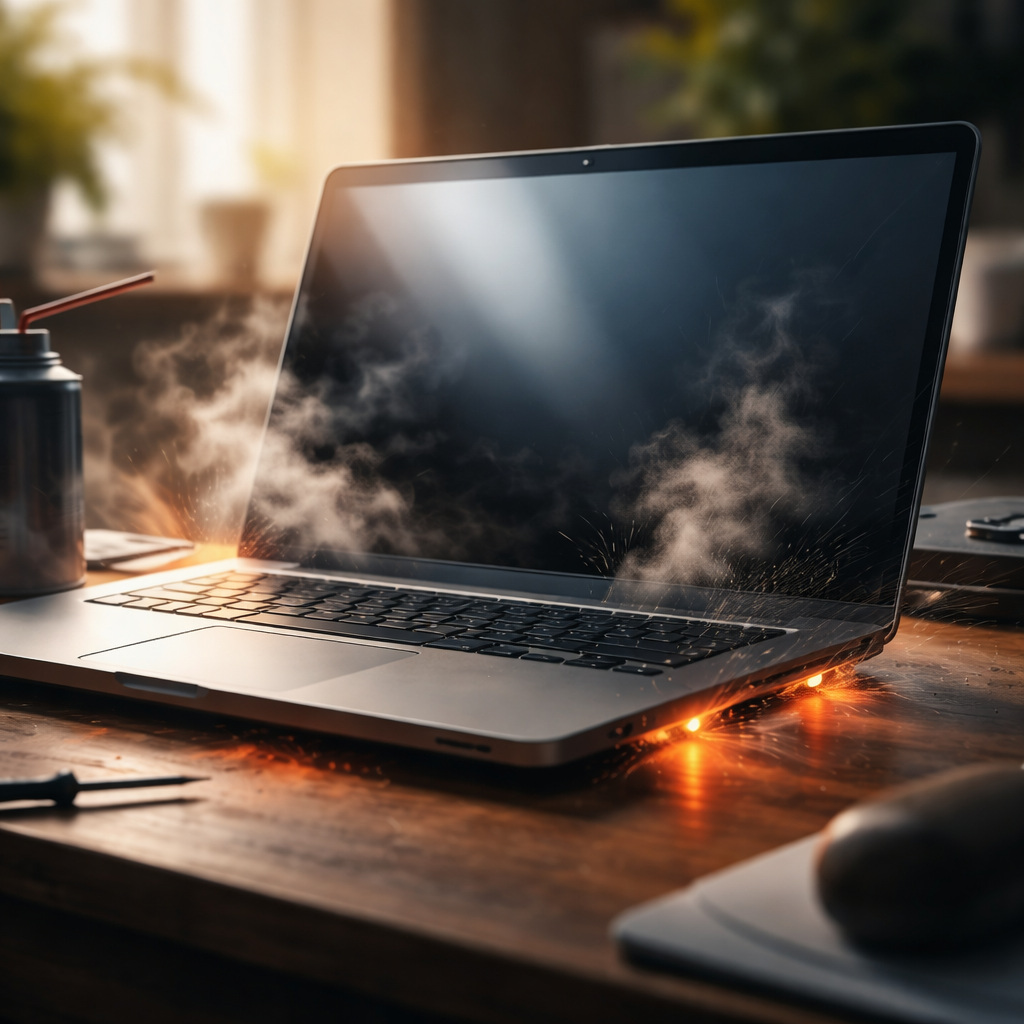
Your laptop fan is screaming, the bottom feels like a frying pan, and the whole machine slows to a crawl — sound familiar? Knowing how to fix overheating laptop issues before they escalate can save you from permanent hardware damage, unexpected shutdowns, and a shortened device lifespan. The good news is that most overheating problems have clear, fixable causes — and you don’t need to be a technician to tackle them.
Why laptops overheat in the first place
Heat is a natural byproduct of your laptop’s processor, GPU, and battery working under load. The problem starts when your cooling system can’t keep up. Dust buildup inside the vents, a dying thermal paste layer between the CPU and heatsink, blocked airflow from soft surfaces, or background apps pushing the processor to 100% — any of these can tip the balance from “warm” to “dangerously hot.”
It’s worth understanding that laptops are engineered with very tight thermal margins. Unlike desktop towers with spacious airflow, a laptop squeezes powerful components into a slim chassis. That means even a thin layer of dust clogging the cooling fins can raise temperatures by 15–20°C, triggering thermal throttling or emergency shutdowns.
Start with the simplest fixes
Before opening your laptop or spending money on anything, run through these immediate steps. Many overheating situations are resolved at this stage alone.
- Place your laptop on a hard, flat surface. Using it on a bed, pillow, or couch blocks the bottom vents completely.
- Check which processes are eating up CPU resources. Open Task Manager (Windows) or Activity Monitor (macOS) and close anything consuming unusual amounts of processor power.
- Make sure your power settings aren’t set to maximum performance mode when you don’t need it. Balanced or power-saver profiles reduce heat output significantly during light tasks.
- Update your operating system and drivers — outdated firmware can prevent the fan from running at the right speed.
A laptop running at 95°C under regular web browsing load is not a sign of heavy usage — it’s a sign of a cooling problem that needs attention.
Cleaning dust: the step most people skip
Compressed air is one of the most underrated tools in laptop maintenance. Dust collects in the exhaust vents over time, forming a barrier that traps heat inside. Spraying short bursts of compressed air into the vents (with the laptop powered off and unplugged) can immediately improve airflow.
If you’re comfortable opening the back panel, a deeper clean is far more effective. Use a soft brush and compressed air to remove dust from the fan blades and the heatsink fins. This alone can drop idle temperatures by 10°C or more on a laptop that hasn’t been cleaned in a year or two.
Thermal paste: a small detail with a big impact
Thermal paste sits between the processor and the heatsink, transferring heat efficiently. Over time — typically after three to five years of use — it dries out, cracks, or degrades. When that happens, the connection between the chip and the cooling system becomes much less effective.
Replacing thermal paste requires opening the laptop and removing the heatsink, so it’s a more advanced step. However, it’s one of the most impactful fixes for chronic overheating in older devices. A quality thermal compound like Arctic MX-4 or Noctua NT-H1 costs very little and can bring temperatures down by 20–30°C in severe cases.
Cooling pads and external solutions
A laptop cooling pad won’t fix a blocked heatsink or degraded thermal paste — but it’s a genuinely useful addition for demanding workloads like video editing, gaming, or running virtual machines. Cooling pads with active fans increase airflow around the bottom of the device and can lower surface temperatures by several degrees during extended sessions.
| Solution | Difficulty | Estimated Temp Reduction | Cost |
|---|---|---|---|
| Hard surface placement | None | 5–10°C | Free |
| Vent cleaning (compressed air) | Low | 10–15°C | Under $10 |
| Deep internal dust cleaning | Medium | 10–20°C | Free / service fee |
| Thermal paste replacement | High | 20–30°C | $5–$15 for paste |
| Cooling pad | None | 3–8°C | $20–$50 |
Software-side overheating: when the hardware isn’t the problem
Sometimes the issue isn’t dust or thermal paste — it’s software. Malware, poorly coded applications, or browser tabs with heavy JavaScript can push your CPU to unnecessary highs. Running a malware scan, disabling startup programs, and limiting the number of browser extensions active at once can noticeably reduce background processor load.
On Windows, you can also use tools like HWMonitor or Core Temp to track real-time temperatures across individual CPU cores. This helps you identify whether the heat spike happens under specific tasks or constantly — which narrows down whether you’re dealing with a hardware or software root cause.
When to stop DIY and get professional help
If your laptop shuts down randomly even during light tasks, produces a burning smell, or shows artifacts on the screen alongside overheating — these are signs of potential GPU or motherboard damage. At that point, no amount of cleaning or paste replacement will solve the underlying issue without professional diagnostics.
It’s also worth considering repair over replacement if the laptop is otherwise functional. A professional cleaning and repaste at a certified service center typically costs far less than a new device — and in most cases, it extends the laptop’s usable life by several years.
Keep the heat manageable long-term
Overheating rarely happens overnight. It builds gradually as dust accumulates, paste dries, and usage habits push hardware harder than it was designed for. Cleaning your laptop’s vents every few months, avoiding use on soft surfaces, monitoring background processes, and doing a full internal clean once a year are habits that genuinely extend hardware life and keep performance consistent.
Treating your laptop’s cooling system as something that needs occasional attention — not just when things go wrong — is the mindset shift that separates users who get five years out of a device from those who replace it after three.