Most players who want to know how to fix lag in Minecraft are dealing with something that isn’t just annoying — it can completely break the gameplay experience. Blocks appear where they shouldn’t, mobs teleport, and your movements feel stuck in honey. The good news is that most lag issues are entirely fixable once you understand what’s actually causing them.
Lag in Minecraft isn’t one problem — it’s three
Before throwing settings around randomly, it helps to identify what kind of lag you’re dealing with. There are three distinct types, and each has a different root cause and solution.
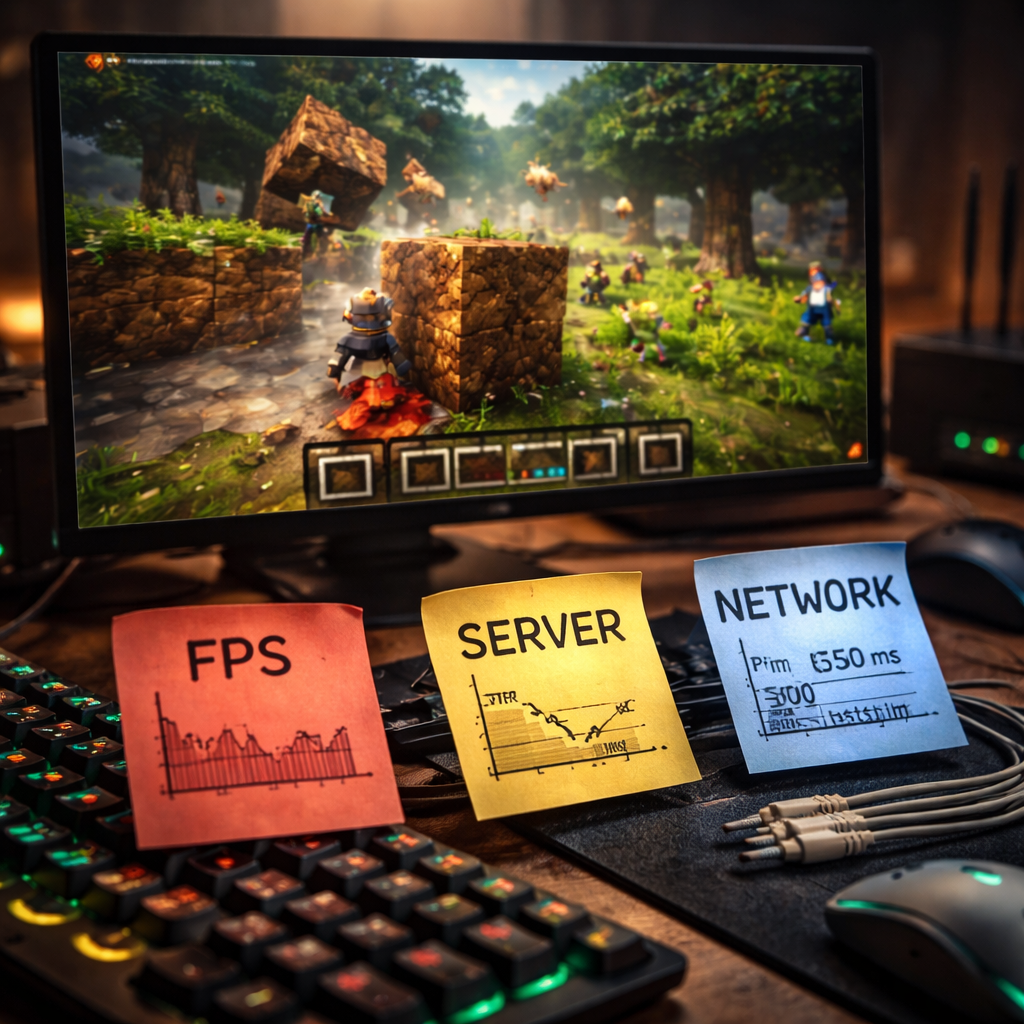
- FPS lag — your game renders slowly, causing choppy visuals. This lives on your machine.
- Server lag — the game world itself processes slowly, often shown by TPS (ticks per second) dropping below 20.
- Network lag — your connection to a remote server is unstable or slow, leading to rubber-banding and delayed block placement.
Confusing these three leads to wasted effort. Lowering your render distance won’t fix a bad internet connection, and switching servers won’t help if your GPU is the bottleneck. Identify first, then act.
Getting your FPS up without sacrificing your sanity
If your frames are dropping, the video settings menu is your first stop. Minecraft’s default settings are not optimized for performance — they’re built for accessibility. Here’s what to actually change:
| Setting | Recommended value | Impact |
|---|---|---|
| Render Distance | 6–10 chunks | High — biggest FPS gain |
| Graphics | Fast (not Fancy) | Medium — affects foliage and transparencies |
| Smooth Lighting | Off or Minimum | Low to Medium |
| Clouds | Off | Low |
| Entity Shadows | Off | Medium in crowded areas |
Beyond settings, installing OptiFine or its more modern alternative Sodium (for Fabric users) can dramatically improve performance. These are client-side mods that rewrite how Minecraft handles rendering. Sodium in particular is well-maintained and often delivers significantly better results than the vanilla client on mid-range hardware.
Allocating more RAM to Minecraft doesn’t always help — over-allocating can actually cause longer garbage collection pauses and make stuttering worse. Stick to 2–4 GB unless you’re running heavy modpacks.
Java arguments and memory: the settings most players never touch
If you’re running the Java Edition, your launcher allows you to set custom JVM arguments. These control how Java itself manages memory during gameplay, and the defaults are not great for performance.
A widely tested and effective set of arguments uses the G1GC garbage collector with specific tuning flags. Tools like the Aikar’s Flags guide (publicly available and referenced across the Minecraft community) provide a proven configuration that reduces stuttering caused by memory management spikes. Simply search for “Aikar’s Flags Minecraft” — the documentation is thorough and free.
When the problem is the server, not your PC
Server-side lag is a different beast. If you’re hosting your own world or running a private server, the performance depends on how it’s configured. Vanilla servers are known to be inefficient compared to server software like Paper or Purpur, which include performance patches not found in the official release.
On a Paper server, you can tune settings like view distance, simulation distance, and mob spawn rates independently. Lowering the simulation distance (how many chunks are actively processed) has a much larger performance impact than reducing what players can see.
- Reduce entity activation range to limit how many mobs are actively pathfinding at once
- Disable or limit redstone activity in resource-heavy areas
- Use the Spark profiler plugin to identify what’s actually consuming your server’s tick time
- Consider moving your server to a machine with a faster single-core CPU — Minecraft is largely single-threaded
Network lag: when your ping is the enemy
If you’re playing on a remote multiplayer server and experiencing rubber-banding or delayed interactions, the issue is likely your connection. A few things worth checking:
Wired connections almost always outperform Wi-Fi for gaming, especially in environments with multiple devices competing for bandwidth. If switching to ethernet isn’t possible, reducing background downloads and streaming on other devices can stabilize your ping noticeably.
Also consider the physical location of the server. If you’re connecting to a server hosted on another continent, even a perfect connection won’t eliminate the distance-based latency. In that case, finding a server geographically closer to you is more effective than any technical tweak.
The stuff that actually moves the needle
After going through all of the above, it’s worth stepping back and thinking about what changes actually produce results. In most cases, the biggest improvements come from a small number of high-impact actions rather than tweaking every possible setting.
- Switching to Sodium or OptiFine gives measurable FPS gains on almost every system
- Dropping render distance from 16 to 8 chunks often doubles frame rate on integrated graphics
- Moving from vanilla server software to Paper is the single most impactful change for self-hosted servers
- Fixing your RAM allocation — not too little, not too much — eliminates many stuttering issues
- Using a wired connection instead of Wi-Fi consistently lowers network lag
Minecraft performance can feel like a mystery, but it responds well to methodical troubleshooting. Know what type of lag you’re dealing with, make one change at a time, and test the result. That approach will get you to a smooth experience faster than any blanket “fix lag” guide that treats all problems as the same.