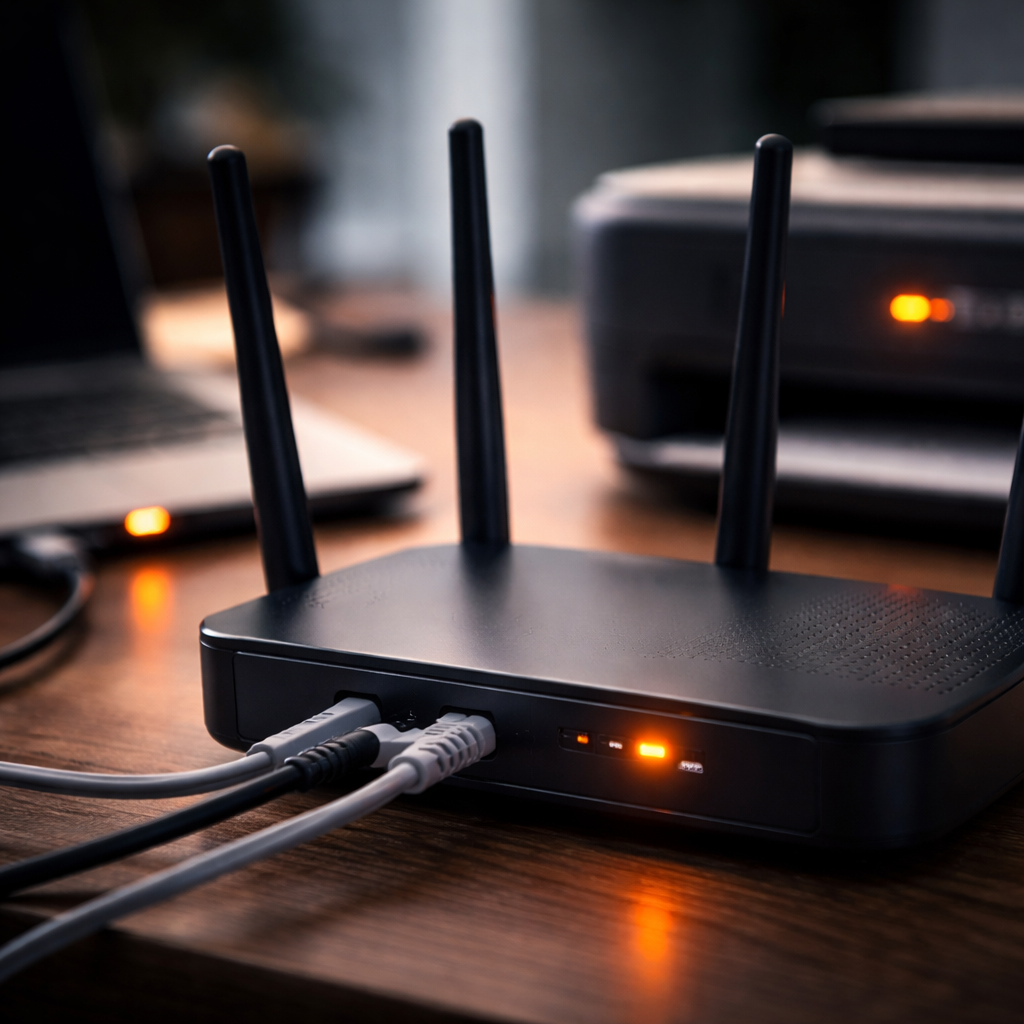
A blinking orange light on your router, printer, laptop charger, or any other device is one of those small annoyances that can quickly turn into real frustration — especially when you have no idea what it means. Knowing how to fix blinking orange light issues starts with understanding that the signal itself is rarely random: it always points to something specific, and in most cases, the fix is simpler than you’d expect.
What does an orange blinking light actually mean?
Different devices use LED indicator lights to communicate their current status. An orange or amber blinking light typically signals one of the following: a connection issue, a hardware fault, a low power state, or a firmware process in progress. The exact meaning depends entirely on the device type and manufacturer.
Before jumping to solutions, it helps to slow down for a moment and check the device manual or the manufacturer’s support page. LED behavior is often documented in detail there — and what looks like a serious error might just be a normal startup sequence.
Router showing an orange blinking light
This is probably the most common scenario people search about. On most routers, a blinking orange or amber light on the WAN or internet port means the device is having trouble establishing a connection with your Internet Service Provider.
Here’s a practical step-by-step approach that resolves the issue in the majority of cases:
- Power cycle your router and modem — unplug both from the power outlet, wait at least 30 seconds, then plug the modem in first and the router second.
- Check all cable connections, particularly the coaxial or ethernet cable running from the wall to your modem.
- Log into your router’s admin panel (usually at 192.168.1.1 or 192.168.0.1) and check the WAN status section.
- Contact your ISP to confirm there are no outages in your area — sometimes the problem is entirely on their end.
- If your router’s firmware is outdated, update it through the admin panel; some connection bugs are patched in newer versions.
A router that keeps blinking orange after a full power cycle often indicates either a line issue from the ISP side or a misconfigured WAN setting — not a broken device.
Printer with an orange flashing light — error or jam?
On printers, especially Canon and HP models, an orange blinking LED is the device’s way of saying something needs attention. The number of blinks often corresponds to a specific error code listed in the manual.
Common causes include:
- Paper jam somewhere along the feed path
- Empty or improperly seated ink cartridge
- Open cover or tray not fully closed
- Waste ink absorber reaching capacity (common in Epson and Canon inkjet printers)
Count the number of blinks carefully before anything else. For example, on many Canon PIXMA models, two blinks indicate a paper jam, while five blinks point to a cartridge problem. This detail alone can save you significant time troubleshooting the wrong thing.
Laptop charger or power adapter blinking orange
When a laptop’s charging indicator blinks orange, it usually means the battery is critically low and starting to charge, or that there’s a communication issue between the charger and the device. Dell laptops, for instance, sometimes blink orange when the battery health has degraded significantly.
| Device | Orange blinking pattern | Likely cause |
|---|---|---|
| Dell laptop | 2 blinks, pause, 4 blinks | Battery fault or power adapter not recognized |
| HP laptop | Steady slow blink | Battery critically low, charging initiated |
| MacBook (MagSafe) | Amber steady or flashing | Charging in progress or connector issue |
Try a different power outlet first, then inspect the charging cable for any visible damage. If you have access to a spare charger that’s compatible with your laptop, test it — this quickly tells you whether the problem is the adapter or the battery itself.
Smart home devices and networking equipment
Smart plugs, mesh network nodes, and home hubs also use orange indicator lights. In these devices, orange blinking typically signals that the device is either in pairing mode, lost its connection to the main hub, or is waiting for configuration.
For mesh systems like Eero, Google Nest, or Amazon Eero, a blinking orange light often means the node can’t reach the main router. Repositioning the node closer to the primary unit or rebooting the entire mesh network usually resolves this.
General troubleshooting principles that actually work
Regardless of the device, a few universal principles hold true when dealing with any blinking amber or orange status light:
- Always start with a full power cycle — it resolves more issues than most people expect.
- Document the blink pattern before searching for solutions; the sequence is often a coded error message.
- Check for overheating — some devices blink orange when internal temperature exceeds safe limits.
- Look for firmware or software updates, as many LED error states are addressed in patches.
- Reset to factory defaults only as a last resort, since this erases all custom settings.
The blink pattern is not decoration — it’s a diagnostic signal. Treating it as such cuts troubleshooting time in half.
When to stop troubleshooting and ask for help
If you’ve worked through all the basic steps and the orange light persists, it may be time to contact the device manufacturer’s support line or visit a certified repair center. Some issues — like a failing power board in a router or a swollen battery in a laptop — genuinely require professional attention and can’t be safely resolved at home.
Also worth noting: if a device is still under warranty, attempting hardware-level repairs yourself may void it. In those cases, filing a warranty claim is almost always the smarter and more cost-effective route.
Orange light fixed — keeping it that way
Once you’ve resolved the issue, a few simple habits can prevent it from coming back. Keep firmware and drivers updated on a regular basis. Make sure devices have adequate ventilation to avoid heat-related faults. Use quality surge protectors to protect routers and networking hardware from power fluctuations — voltage spikes are a surprisingly common cause of connection errors and hardware stress that eventually show up as indicator light warnings.
Devices communicate through those small blinking lights more than most users realize. Learning to read them — rather than ignore them — puts you in a much better position to handle these situations quickly, confidently, and without unnecessary expense.