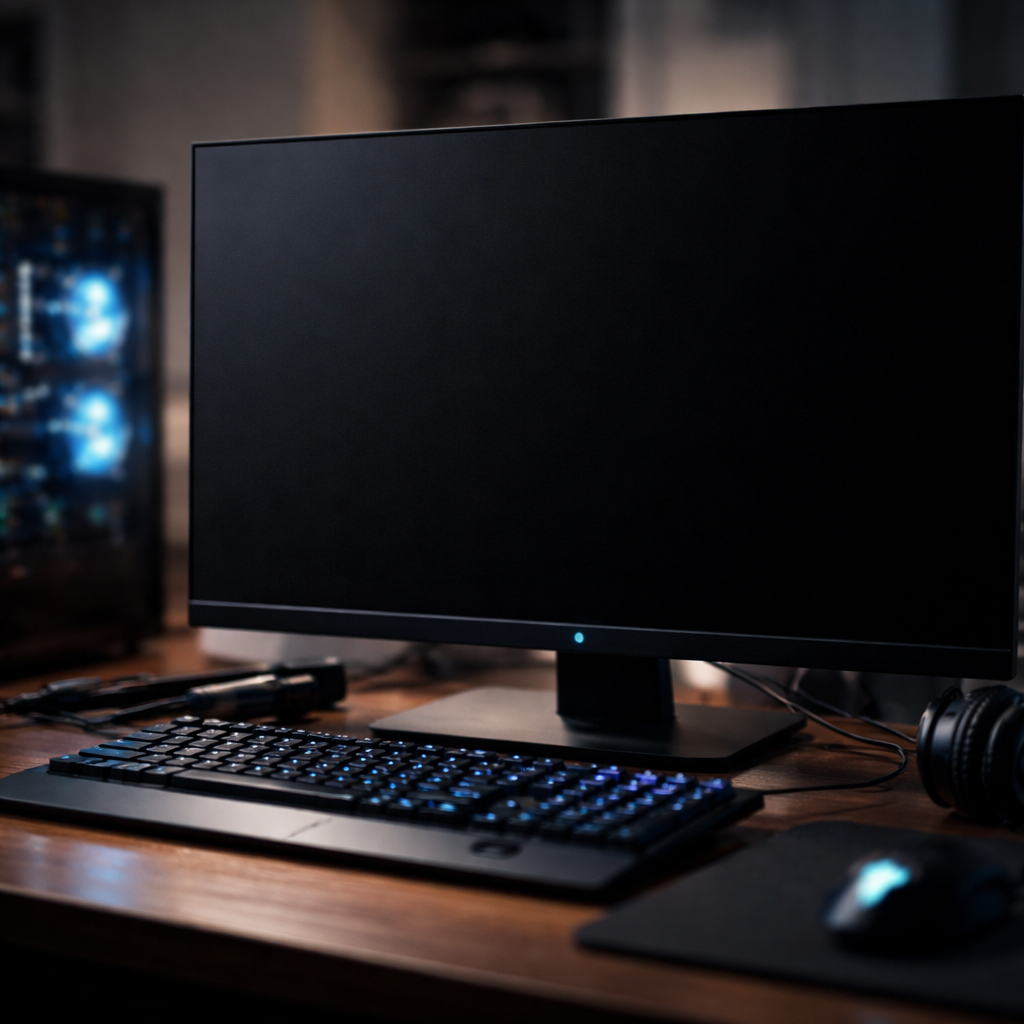
Your monitor glows, the fans spin, but the screen stays completely dark — knowing how to fix black screen of death can save you hours of frustration and, potentially, an unnecessary trip to a repair shop. This issue affects both Windows and Mac users, and the causes range from simple display connection problems to more complex software failures. The good news is that most cases are solvable without replacing any hardware.
Why does this happen in the first place?
Before jumping into fixes, it helps to understand what you’re actually dealing with. A black screen is not always the same problem wearing the same mask. Sometimes the operating system loads just fine but the display signal never reaches the monitor. Other times, a corrupted driver or a failed Windows update interrupts the boot process entirely, leaving you staring at nothing.
There are two main scenarios worth distinguishing: a black screen before login, which usually points to a hardware or boot issue, and a black screen after login, which almost always traces back to software — drivers, startup programs, or a broken shell process. Knowing which one you’re facing will cut your troubleshooting time in half.
Start with the basics — hardware checks first
It sounds obvious, but a loose cable is responsible for a surprising number of black screen reports. Before assuming the worst, run through this checklist:
- Unplug and firmly reconnect the HDMI, DisplayPort, or VGA cable on both ends.
- Try a different cable if one is available — cables fail more often than people expect.
- Switch to a different monitor or TV to rule out a faulty display unit.
- If you have a dedicated GPU, make sure the cable is connected to the graphics card, not the motherboard port.
- Press the monitor’s power button directly and check its input source setting.
If the screen flickers briefly or shows a manufacturer logo before going black, the hardware connection is likely fine and you can move on to software-level fixes.
Fixing a black screen on Windows
Windows is the most common environment where users encounter this problem, and Microsoft has added several recovery tools over the years precisely because of how often display-related failures occur.
Restart Explorer via Task Manager
If your PC boots and you can hear the startup sound or see the cursor moving on a black background, the desktop shell — explorer.exe — has likely crashed. This is one of the quickest fixes available:
- Press Ctrl + Alt + Delete and open Task Manager.
- Click File, then Run new task.
- Type explorer.exe and press Enter.
In many cases, the desktop reappears immediately. If it does, the underlying cause might be a startup program interfering with the shell — worth investigating through the Startup tab in Task Manager.
Roll back or reinstall the display driver
A faulty or recently updated graphics driver is one of the leading causes of black screen after login errors. To address this, boot into Safe Mode first — hold Shift while clicking Restart from the login screen, then navigate to Troubleshoot, Advanced Options, and Startup Settings.
Once in Safe Mode, open Device Manager, expand Display Adapters, right-click your GPU, and choose either Roll Back Driver or Uninstall Device. After restarting normally, Windows will reinstall a default driver, which should restore display output. You can then install a stable driver version from the manufacturer’s website.
Safe Mode loads Windows with only essential drivers and services, which makes it an invaluable environment for diagnosing display and software conflicts that prevent normal startup.
Use Startup Repair or System Restore
If you cannot reach the desktop at all and Safe Mode doesn’t help, Windows Recovery Environment is your next tool. Boot from a Windows installation USB, choose Repair your computer, and from there you can run Startup Repair or restore the system to a point when everything was working correctly. System Restore does not delete personal files, but it will undo recent software and driver changes.
| Symptom | Likely Cause | Recommended Fix |
|---|---|---|
| Cursor visible, no desktop | explorer.exe crash | Restart Explorer via Task Manager |
| Black screen after driver update | Incompatible GPU driver | Roll back driver in Safe Mode |
| Black screen before login | Boot or system file error | Startup Repair via recovery media |
| No signal to monitor at all | Cable or hardware issue | Check connections and test different cable |
What about Mac users?
Mac computers experience their own version of this problem, often triggered by a failed macOS update, a Sleep/Wake failure, or a corrupted login item. The approach differs slightly from Windows but follows the same diagnostic logic.
Resetting the SMC (System Management Controller) on Intel-based Macs resolves a wide range of display and power-related issues. For Apple Silicon Macs, simply shutting down completely and waiting a few seconds before restarting achieves a similar reset effect. If the screen remains dark after that, booting into Recovery Mode by holding Command + R at startup gives access to Disk Utility and reinstallation options.
Safe Mode on Mac works similarly to Windows — hold Shift during startup to disable third-party login items and run a basic disk check. If the screen appears normally in Safe Mode, a login item or startup agent is the culprit, and you can remove it through System Settings under Login Items.
One thing most guides skip
Overheating is an underestimated trigger for sudden black screens, particularly on laptops. When a CPU or GPU reaches a critical temperature, the system may cut the display signal as a protective measure while continuing to run. If your black screen episodes happen after extended use or during demanding tasks, check the internal fans and vents for dust buildup. Cleaning them out — or applying fresh thermal paste on older machines — can eliminate the problem entirely without any software intervention.
When the screen stays dark no matter what you try
If every software-based approach fails and the screen remains black across different monitors and cables, the issue is almost certainly hardware — a failed GPU, a damaged motherboard component, or a backlight failure on a laptop panel. At that point, professional diagnostics are the most practical path forward. Attempting to replace a GPU or resolder components without experience tends to turn a repairable problem into a permanent one.
That said, the vast majority of black screen cases never reach this stage. Most people who work through the steps above — checking connections, restarting the shell, addressing driver conflicts, or running a system repair — find a resolution well before hardware replacement becomes a conversation. Patience and a methodical approach are genuinely the most valuable tools you have here.