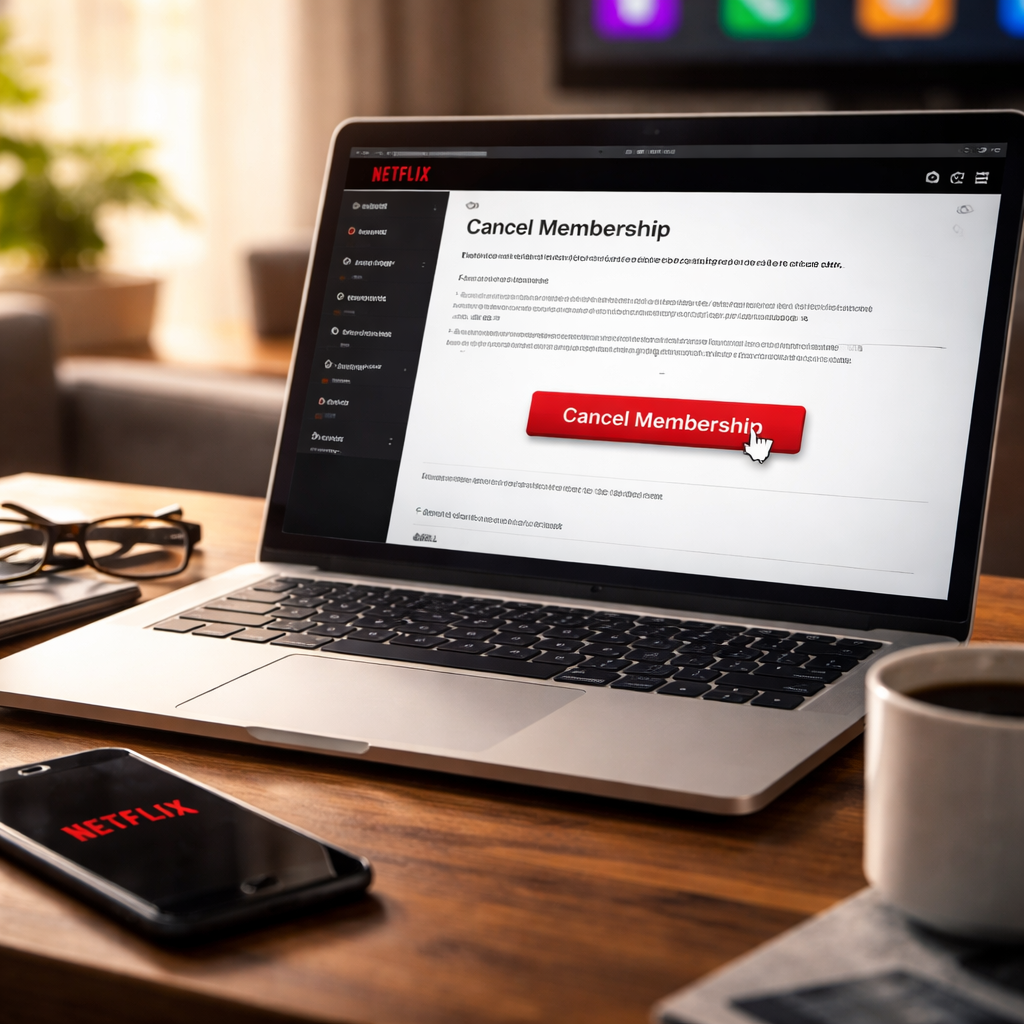
Most people figure out how to cancel Netflix only after they’ve already been charged for another month — and that’s exactly the kind of frustration this guide is here to prevent. Whether you’re cutting back on subscriptions, switching to a different platform, or simply taking a break, the process is straightforward once you know where to look.
What happens to your account when you cancel
Before jumping into the steps, it’s worth understanding what cancellation actually means for your account. Netflix does not delete your profile, watch history, or preferences immediately. Instead, your access continues until the end of the current billing period. After that, the account goes into a kind of suspended state for a limited time, during which you can reactivate it and pick up right where you left off — same profiles, same viewing history.
This is useful to know because many people assume they lose everything the moment they cancel. That’s not the case. Netflix retains your account data for roughly ten months after cancellation, so there’s no pressure to binge-watch everything before pulling the plug.
Canceling Netflix on a computer or laptop
The desktop version gives you the clearest path to cancellation. Here’s how to do it:
- Go to netflix.com and sign in to your account.
- Click on your profile icon in the top-right corner.
- Select “Account” from the dropdown menu.
- Under the “Membership” section, click “Cancel Membership.”
- Confirm your choice on the next screen.
The entire process takes under two minutes. Once confirmed, Netflix will show you the exact date your access ends — save or screenshot that information for your records.
Canceling through a mobile device
This is where things get a little more nuanced, because the cancellation process depends not just on the app — but on how you originally signed up.
If you signed up directly through Netflix
Open a browser on your phone (not the app itself) and navigate to netflix.com. From there, follow the same steps as the desktop method described above. The mobile browser experience mirrors the desktop one closely enough that you won’t get lost.
If you subscribed through Apple (iTunes billing)
You’ll need to cancel through your iPhone or iPad settings, not through Netflix directly. Go to Settings, tap your name, then Subscriptions, find Netflix in the list, and select Cancel Subscription. Netflix itself has no control over billing managed by Apple.
If you subscribed through Google Play
Open the Google Play Store app, tap your profile icon, go to Payments & Subscriptions, then Subscriptions, find Netflix, and cancel from there. Same logic applies — Google handles the billing, so that’s where cancellation must happen.
If you’re unsure how you originally signed up, check your email inbox for the original Netflix confirmation or receipt. The sender will tell you whether billing came from Netflix, Apple, or Google.
Canceling via a smart TV or streaming device
Some users subscribe to Netflix directly through their smart TV manufacturer or a device like Roku, Amazon Fire TV, or a cable provider. In those cases, canceling through Netflix’s website won’t stop the billing — you’ll need to go through the platform you originally used.
| Subscription source | Where to cancel |
|---|---|
| Netflix website/app (direct) | netflix.com → Account → Cancel Membership |
| Apple / iTunes | iPhone Settings → Subscriptions |
| Google Play | Play Store → Payments & Subscriptions |
| Roku | Roku account website or device settings |
| Amazon Prime Channels | Amazon account → Memberships & Subscriptions |
| Cable or telecom provider | Contact your provider directly |
When in doubt, check your bank or credit card statement — the name of the company charging you will point you directly to where you need to cancel.
A few things worth knowing before you confirm
Netflix occasionally offers alternatives to full cancellation — particularly if you’ve been a subscriber for a while. In some regions, users are presented with a “pause membership” option, which suspends billing for one to three months without permanently closing the account. If you’re just looking for a temporary break, this can be a cleaner solution than canceling and resubscribing later.
Also worth noting: Netflix does not offer prorated refunds. If you cancel halfway through your billing cycle, you keep access until the end of the period, but you won’t receive a partial refund for unused days. Plan your cancellation timing accordingly — ideally right before your next renewal date.
What if the cancel button isn’t showing up?
This happens more often than you’d think, and it’s almost always tied to how the subscription was set up. If you log into netflix.com and the option to cancel isn’t visible under your account settings, it means Netflix isn’t the one billing you — another platform is. Go back to the table above and check which third party might be managing your subscription.
If you’ve verified that Netflix is the biller and the button still isn’t appearing, try clearing your browser cache, switching to a different browser, or accessing the account settings from a desktop rather than a mobile browser. In rare cases, contacting Netflix customer support via their live chat option resolves the issue quickly.
After cancellation — what actually changes
Once your billing period ends, you’ll lose access to all Netflix content. Downloads on mobile devices will also become unavailable. However, as mentioned earlier, your account data stays intact for a significant period, meaning a future reactivation is as simple as logging back in and entering payment details.
If multiple people in your household share the account, they’ll all lose access at the same time — so it’s considerate to give a heads-up before canceling a shared subscription. There’s no partial cancellation or per-profile removal option.
The cancellation itself generates a confirmation email from Netflix. Keep it as proof, especially if you’re managing multiple streaming subscriptions and want to track what’s active and what isn’t. A quick folder in your inbox labeled “subscriptions” can save a surprising amount of confusion over time.